TikTok Ads Active But Not Spending: Zero-Spend Fix
Fix TikTok ads showing green Active and Approved but spending $0. Diagnose cold-start eCPM locks, status desync, and unfreeze delivery fast.
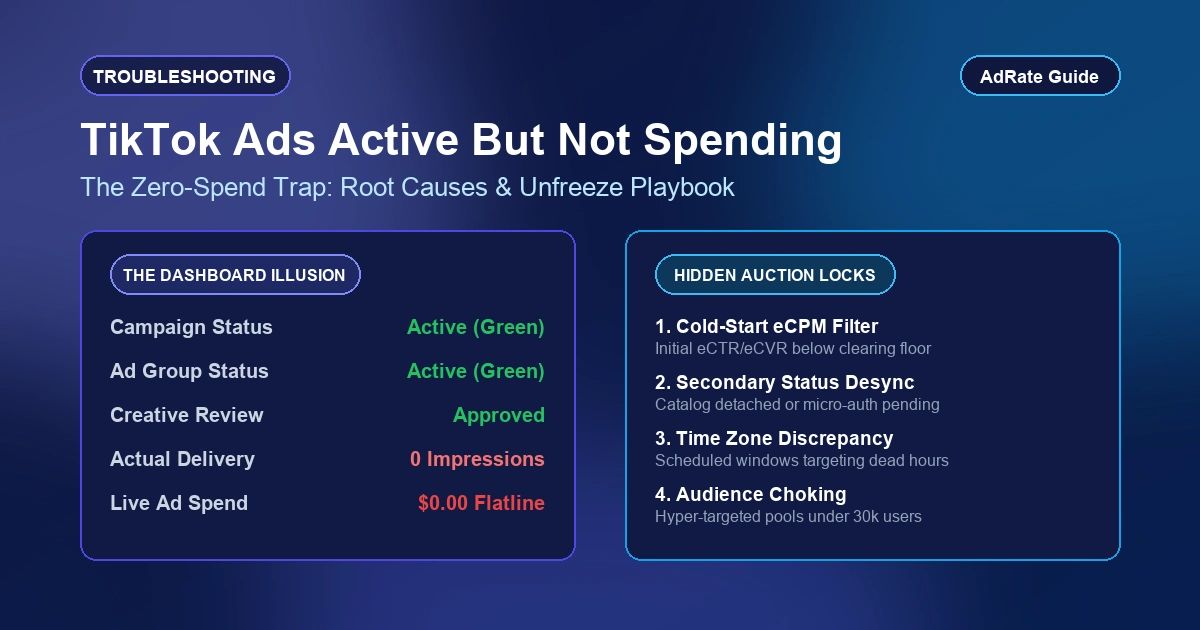
You open TikTok Ads Manager expecting traction after launch, only to find a frustrating paradox. The campaign toggle is green and Active. The ad group status reads Active. Every creative displays an Approved badge. Yet 6, 12, or even 24 hours later, the dashboard flatlines: 0 impressions, 0 clicks, and strictly $0.00 spent.
If your TikTok ads are active but not spending, your ads passed initial moderation but failed auction entry. An Active status confirms compliance with community guidelines, not eligibility to win bids. When live spend remains at zero, the ad group is disqualified before the auction or frozen by a pacing bottleneck.
Here is why active campaigns get trapped at zero spend and the 4-step protocol to unfreeze delivery within hours.
4 Hidden Gaps Behind the Green Active Status
When TikTok Ads Manager displays an explicit error banner, troubleshooting is simple. When errors are absent, media buyers waste hours waiting for algorithms to warm up. In reality, four silent bottlenecks cause zero spend.
1. Secondary Status Desync and Asset Locks
The primary status column in TikTok Ads Manager reflects the parent container. Even when a campaign displays Active, an underlying component can hold an invisible block:
- TikTok Shop Product Status: If an advertised product goes out of stock, triggers a shop health review, or disconnects its warehouse catalog, delivery drops instantly to zero while the ad remains Active.
- Identity Authorization Expiry: For Spark Ads or creator partnerships, expired authorization codes halt live bidding silently.
- Post-Approval Security Re-Scans: TikTok occasionally routes approved ads into secondary background queues when targeting high-risk verticals or brand-new billing accounts.
If you see an explicit red notice rather than a silent freeze, consult our guide on resolving TikTok ads not delivering error codes.
2. Cold-Start eCPM Auction Floor Starvation
TikTok ranks and enters candidate ads into user feeds using an effective cost-per-mille formula:
eCPM = (Bid * eCTR * eCVR * 1,000) + Quality Score
For brand-new ad accounts, unseasoned pixels, or fresh creatives, TikTok lacks historical performance data. The algorithm assigns baseline, conservative estimates for expected click-through rate (eCTR) and conversion rate (eCVR).
If your ad group operates on narrow constraints or strict manual bidding, the calculated eCPM drops below the minimum auction clearing floor. The ad group never enters user auctions, locking delivery at $0.00 spend. Advertisers using manual bid controls should check our deep dive on fixing TikTok bid cap auction starvation.
3. Time Zone Offset and Dayparting Conflicts
Ad accounts run on fixed time zones configured during registration, which often differ from your local device clock or target market. If your business resides in London (UTC+0) targeting Los Angeles (UTC-8) and you schedule ads from 9:00 AM to 9:00 PM based on local perception, your ads run during off-peak US night hours. The auction system restricts delivery when target user activity hits daily troughs.
4. Hyper-Targeting Audience Suffocation
Stacking narrow parameters--such as a 1% Lookalike combined with granular interest categories, device constraints, and strict age brackets--shrinks reachable pools below 30,000 users. Standard delivery algorithms avoid bidding on ultra-narrow pools during cold starts to prevent rapid frequency fatigue.
| Diagnostic Check | What You See in Dashboard | Underlying Operational Issue |
|---|---|---|
| Primary vs Secondary Status | Green "Active" toggle | Hovering status reveals "Catalog Disconnected" or "Account Pending" |
| Cold-Start eCPM | Active with 0 impressions | Baseline eCTR/eCVR fails to meet minimum auction bid clearing floor |
| Delivery Pacing | Active, Lowest Cost | Dayparting window is closed or account time zone offset is inverted |
| Audience Liquidity | Audience size "Narrow" | Available user pool under 30k suffocates auction candidate selection |
The 4-Step Zero-Spend Unfreeze Protocol
Do not delete and duplicate stalled campaigns. Duplicating unproven ads duplicates the root cause while triggering repetitive moderation checks. Follow this 4-step unfreeze procedure instead.
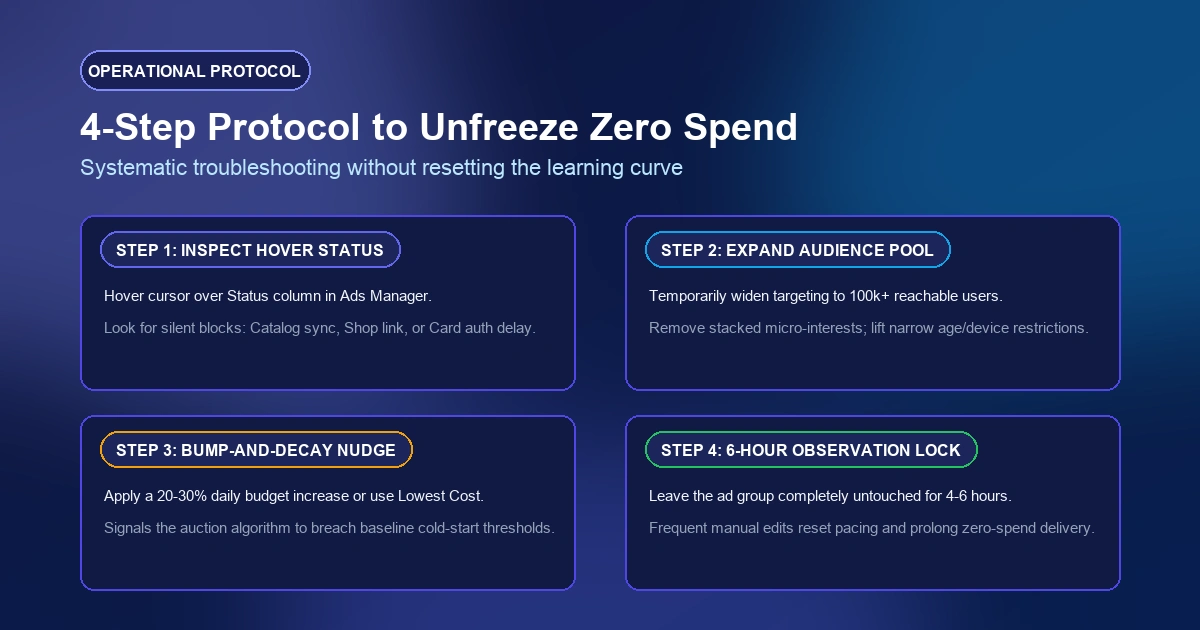
Step 1: Inspect Hover Secondary Statuses and Account Budgets
Navigate to Ads Manager and drill down: Campaign -> Ad Group -> Ad.
- Hover your cursor directly over the Status column text for each level. Inspect the tooltip for secondary flags like "Under Review (Secondary)", "Creative Limited", or "Shop Product Unavailable".
- Check your parent campaign settings. A campaign capped by a lifetime or daily limit will freeze all child ad groups at $0 spend. Review our checklist on clearing TikTok out-of-campaign budget flags.
- If you run a new ad account, verify whether account-level restrictions apply. Accounts in initial sandboxes face automated daily thresholds; read our breakdown on navigating TikTok new account daily spending limits.
Step 2: Temporarily Broaden Audience Liquidity
If your audience estimation meter shows "Narrow" or sits below 100,000 users:
- Remove overlapping interest and behavioral inclusions.
- Expand age brackets (e.g., widen 25-34 to 18-54 for testing).
- Keep targeting open for geographic location and language during initial cold starts.
Providing algorithmic liquidity gives TikTok's auction engine room to locate first-wave convertors, lifting baseline eCTR calculations.
Step 3: Apply the "Bump-and-Decay" Liquidity Nudge
When using Lowest Cost bidding, the auction engine sometimes stalls if baseline signals predict low early engagement. Kickstart delivery velocity with a controlled budget nudge:
- Increase the ad group daily budget by 20% to 30%.
- If using manual bidding or Cost Cap, switch the bidding strategy temporarily to Lowest Cost (Maximum Delivery).
- This signals the auction bidder to enter broader candidate pools without strict margin floors. Once the ad group registers its first 1,000 impressions and establishes non-zero conversion probabilities, taper your budget back to planned baseline levels.
Step 4: Enforce a Strict 6-Hour Observation Window
Every time you toggle a setting, modify audience parameters, or edit video metadata, TikTok resets the ad group pacing engine.
Do not tweak settings every 30 minutes. Once you apply the audience expansion and budget nudge, leave the ad group untouched for a minimum of 4 to 6 hours. The auction system requires this window to recalculate eCPM ranks across regional auction clusters.
Prevent Zero Spend with AdRate Automated Rules
Monitoring dozens of campaigns across multiple client ad accounts manually is inefficient. A zero-spend freeze during holiday peaks or flash sales burns critical sales windows before media buyers notice flatlining graphs.
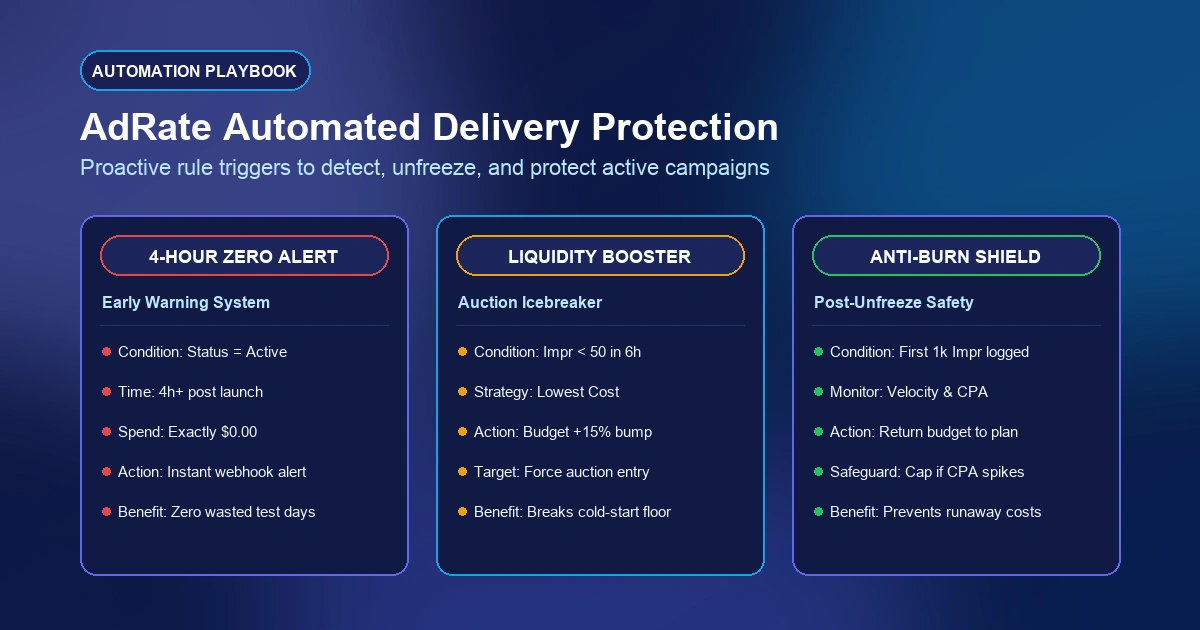
AdRate eliminates pacing paralysis by automating delivery health checks across all your TikTok ad accounts:
- 4-Hour Zero-Spend Warning: Automatically scan active ad groups. If status equals Active, current time is 4+ hours past schedule start, and spend equals $0.00, receive an instant alert.
- Dynamic Liquidity Booster: Build automated rules that apply a 15% budget bump or expand bidding mode if impressions remain below 50 within the initial launch window.
- Anti-Burn Safeguards: The moment delivery unlocks, AdRate rules protect ad spend by monitoring hourly burn rates and capping budgets if initial CPA spikes above performance thresholds.
Stop losing campaign momentum to silent dashboard freezes. Connect your TikTok ad accounts and automate your launch monitoring with a free 7-day trial of AdRate.
Official TikTok new advertiser program - exclusive benefits for new advertisers
Open a new TikTok ad account and earn official ad credit as you spend
Spend $200 within 30 days of signing up and get $200 in ad credit, rising to $6,000 when you spend $10,000. Credits go straight into your TikTok ad campaigns.
Coupons are issued by TikTok once it confirms you qualify as a new advertiser. Actual issuance and tiers are shown on the Coupon Progress page inside your TikTok Ads account.