Enable Bulk Authorization: TikTok Shop Affiliate & Shop Ads SOP
Step-by-step guide to enable bulk authorization for TikTok Shop affiliate videos. Set Shop Ads commission, guide creators in-app, and fix paused Shop Ads.
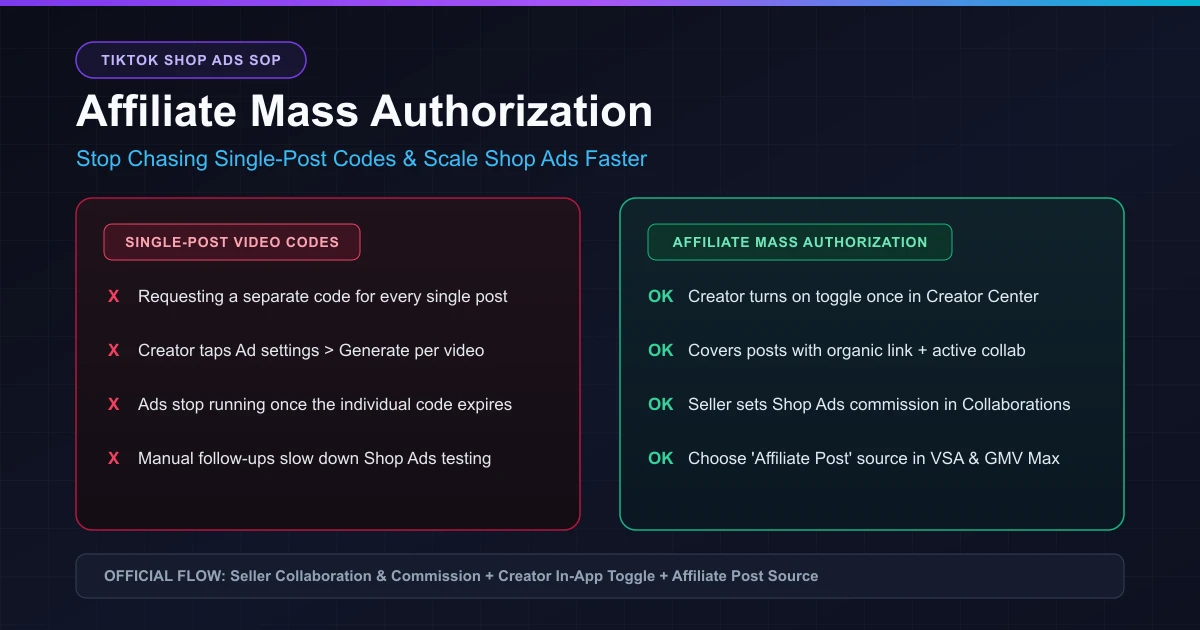
When scaling TikTok Shop campaigns across creator partnerships, knowing how to enable bulk authorization affiliate workflows is the biggest operational unlock for your ad spend. Instead of chasing influencers one by one for Spark Ads video codes, TikTok's Affiliate Mass Authorization (the creator toggle Authorize sellers to use affiliate videos in Shop Ads) lets all sellers feature a creator's affiliate posts in Shop Ads without per-video code generation.
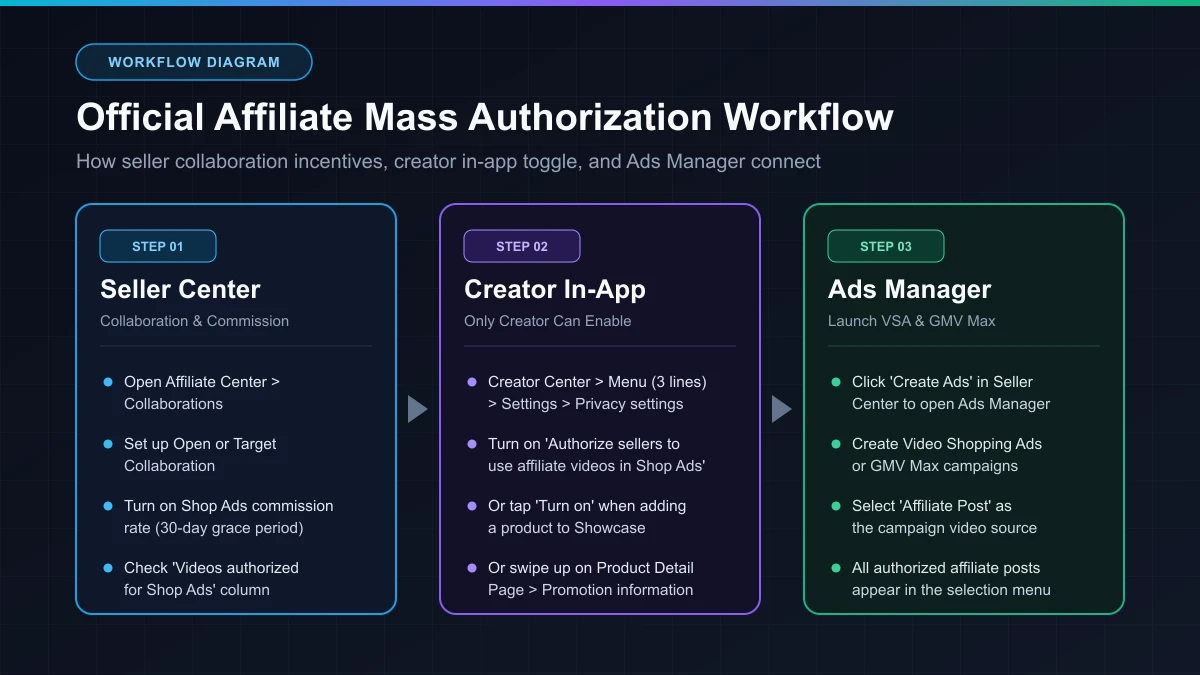
However, Affiliate Mass Authorization can only be turned on by the creator inside the TikTok app—sellers cannot initiate bulk authorization or send requests from Seller Center. Your seller-side steps are setting up an affiliate collaboration, configuring a Shop Ads commission rate, viewing clips under Videos authorized for Shop Ads, and selecting Affiliate Post as your video source in Ads Manager.
Mass Authorization vs. Video Codes: Why Manual Codes Slow Down Shop Ads
In standard Spark Ads setups, running creator content relies on traditional Spark Ads video code generation per post. A creator opens the video in the TikTok app (or the Settings menu for that affiliate post), taps the three dots > Ad settings > Generate, and shares a post code that carries a reviewable authorization period beneath the post.
When evaluating Shop affiliate vs seller ads ROAS, creator content consistently beats brand-studio ads, but single-post codes bottleneck volume:
- Pacing Delay: Viral videos peak fast; waiting days for a reply forfeits that window.
- Code Expiration: Single-post ads only run until the video code expires.
- Per-Post Friction: Each code covers only one particular post, requiring constant follow-ups.
Once a creator enables Affiliate Mass Authorization in-app alongside your active collaboration, you get access to their short videos currently promoting your product—without them turning it on again per post.
| Dimension | Affiliate Mass Authorization (Bulk) | Video Code Authorization (Single Post) |
|---|---|---|
| Where to Enable | Creator turns on once in TikTok Shop Creator Center | Creator generates in Settings / Ad settings per post |
| Scope | All sellers can feature all of the creator's affiliate posts in Shop Ads | Specific advertiser runs only one particular post |
| Eligible Posts | Posts with an organic affiliate product link and active collaboration | Required for posts without a product link or collaboration |
| Change Product Link? | No—only the seller who listed the product can feature that link | Yes—advertisers can change the promoted product |
| When Ads Stop | No timer; stops if toggle is turned off, collaboration expires, or post loses its organic product link | Runs until the video code expires |
Keep two rules in mind:
- Both methods are independent: Turning Mass Authorization on or off does not turn on or off individual video code authorizations. Under either method, ad-driven orders using an affiliate post may still generate commission.
- Mass Authorization vs. Batch Upload: In Ads Manager, advertisers can batch authorize up to 20 video codes at a time when adding posts—that is a bulk input for single-post codes, not creator-side Mass Authorization.
Seller Center Setup: Collaborations, Commissions, and Authorized Videos
Because sellers cannot toggle video authorization for creators, your Seller Center workflow focuses on collaborations and commissions:
- Create a Collaboration: In Seller Center, go to Affiliate Center > Collaborations. Set up Open Collaboration (open to all creators; in the Open collaboration tab you can also switch the Auto-add new products toggle) or Target Collaboration (creator-specific).
- Set Shop Ads Commission Rate: Toggle on the Shop Ads commission rate to set a rate for ad-driven orders. Both Standard and Shop Ads commission rates have a 30-day grace period with active creators.
- View Authorized Videos: Once creators turn on authorization in-app, view their clips under Videos authorized for Shop Ads and click Create Ads to redirect to Ads Manager.
Creator-Side Workflow: 3 Official Entry Points in the TikTok App
Until a creator turns on their toggle, their videos will not appear in your authorized list. Share these three official in-app entry points so creators can enable Authorize sellers to use affiliate videos in Shop Ads:
- TikTok Shop Creator Center Settings: Open TikTok Shop Creator Center in the TikTok app, tap the top-right menu (3 lines icon), go to Settings > Privacy settings, and turn on Authorize sellers to use affiliate videos in Shop Ads.
- Showcase Notification: When adding a product to their showcase, creators receive a Get extra commission from affiliate videos notification and can tap Turn on.
- Product Detail Page: On any Product Detail Page, creators swipe up to see Promotion information, tap the [XX]% commission rate to view earnings details, and toggle authorization on or off.
Creators can turn this off anytime. Turning authorization off stops active seller Video Shopping Ads—and if they turn it back on later, sellers must set up the ads again.
Using Authorized Affiliate Posts in Ads Manager and GMV Max
Once a creator enables Mass Authorization for videos promoting your product, deploy them in Ads Manager:
- Redirect from Seller Center: Click Create Ads under Videos authorized for Shop Ads, or open Ads Manager directly.
- GMV Max Campaigns: Create GMV Max ads as usual with Affiliate Post as the video source.
- Video Shopping Ads (VSA): Choose Affiliate Post as the video source; all authorized affiliate posts appear in the menu.
- Posts Needing Video Codes: For posts without a product link, outside a collaboration, or needing a different product link, request a single-post code (three dots > Ad settings > Generate) and batch authorize up to 20 codes in Ads Manager.
Troubleshooting Paused Shop Ads After Authorization Changes
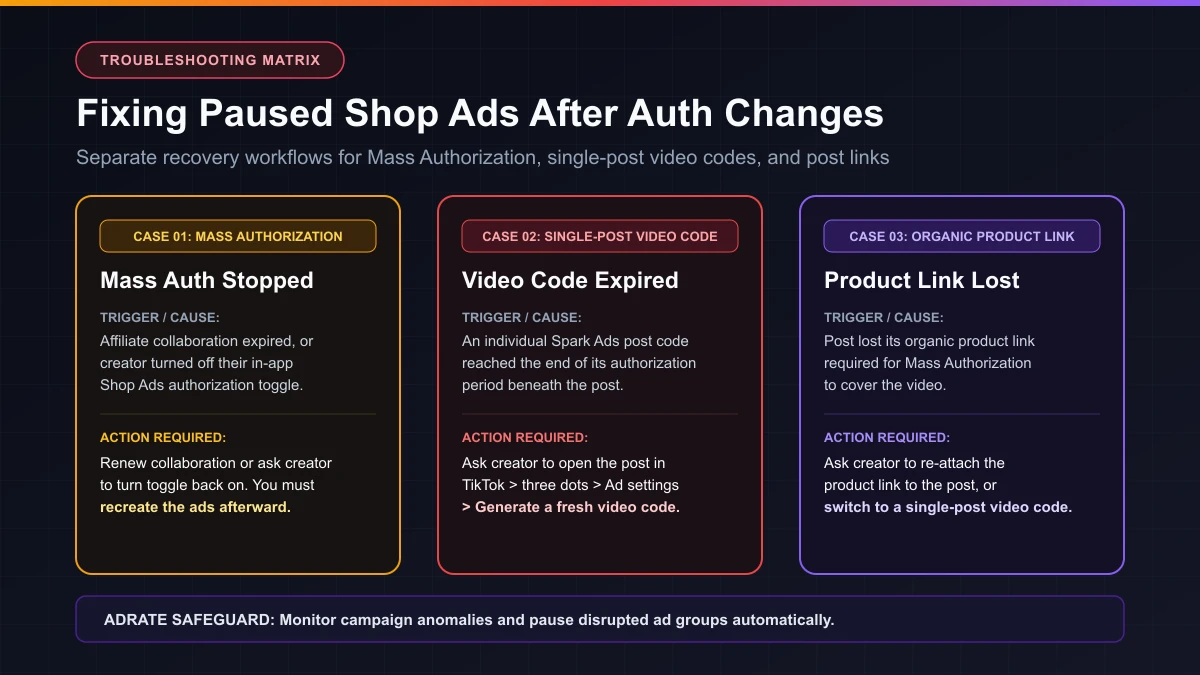
When an affiliate ad stops delivering after a permission or link change, check this table. If Ads Manager shows a delivery status such as asset unavailable or authorization revoked, see our asset unavailable and authorization revoked diagnostic guide.
| Root Cause | Diagnostic Indicator | Rapid Operational Fix |
|---|---|---|
| Mass Authorization Stopped | Active Video Shopping Ads pause even though no video code was used. | Renew the collaboration in Affiliate Center > Collaborations, or ask the creator to turn Authorize sellers to use affiliate videos in Shop Ads back on. Recreate the ads afterward. |
| Video Code Expired | A Spark Ad using a single-post code stops after its authorization period. | Ask the creator to open the post, tap three dots > Ad settings > Generate for a new code. |
| Lost Organic Product Link | The affiliate post lost its organic product link. | Ask the creator to re-attach the organic product link, or use a single-post video code. |
Protect Ad Delivery with Automated Safeguards in AdRate
When an affiliate collaboration ends, a creator turns off their toggle, or a post loses its organic product link mid-campaign, ad groups can stall before manual teams notice.
AdRate helps e-commerce brands monitor TikTok Shop ad performance and automate rule-based safeguards across accounts—pausing disrupted ad groups and keeping budget focused on high-converting affiliate creatives.
Connect your TikTok Shop and ad accounts with AdRate today to scale your creator ad pipeline with confidence.
Official TikTok new advertiser program - exclusive benefits for new advertisers
Open a new TikTok ad account and earn official ad credit as you spend
Spend $200 within 30 days of signing up and get $200 in ad credit, rising to $6,000 when you spend $10,000. Credits go straight into your TikTok ad campaigns.
Coupons are issued by TikTok once it confirms you qualify as a new advertiser. Actual issuance and tiers are shown on the Coupon Progress page inside your TikTok Ads account.