TikTok LIVE Ads Identity Not Eligible? Fix It by Symptom
TikTok LIVE ads identity not eligible or greyed out? Fix accounts missing from LIVE source, Official Account blocks, and creator exclusive access.
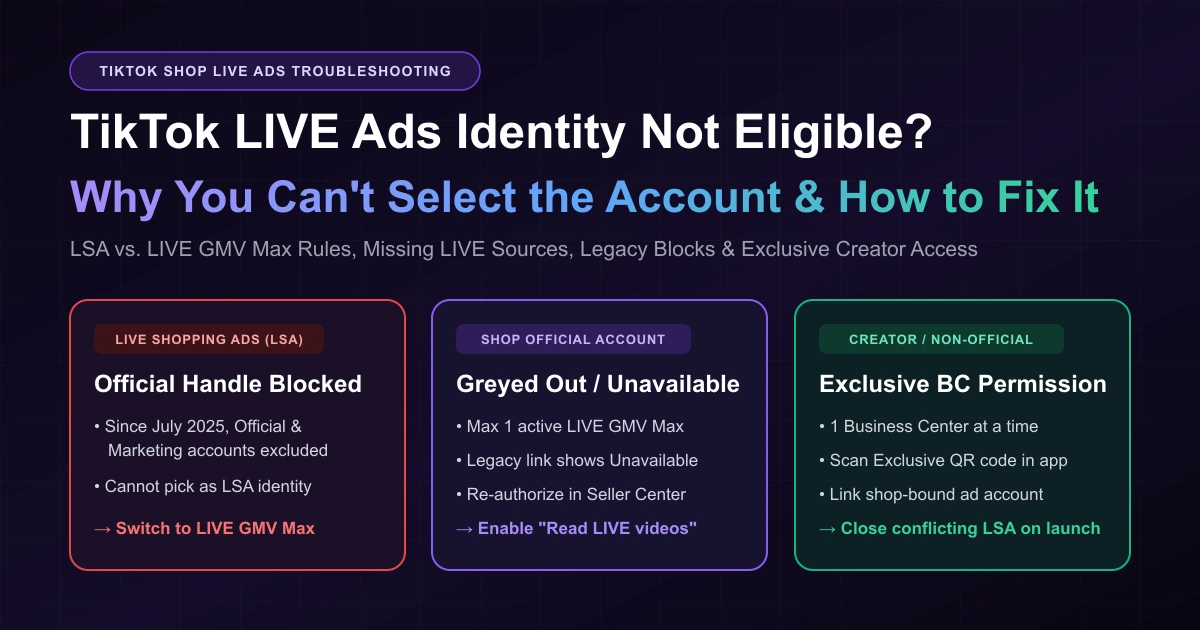
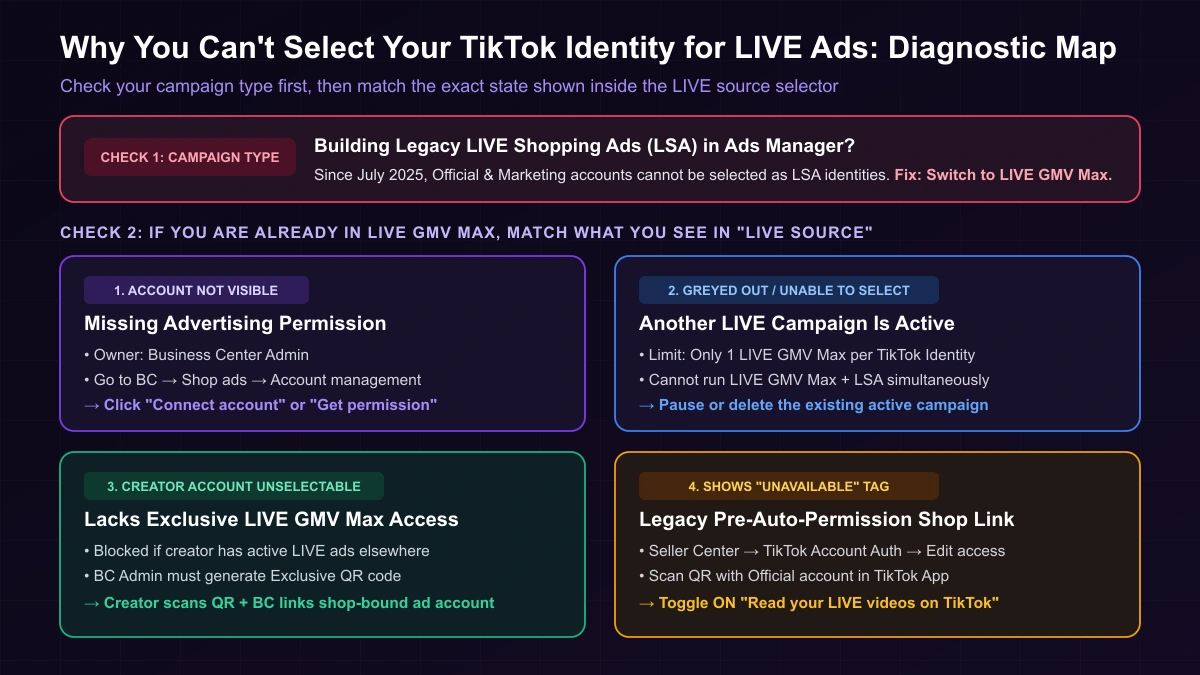
When your TikTok LIVE ads identity is not eligible during setup, check your campaign type first: if you are building legacy LIVE Shopping Ads (LSA) with your shop's Official or Marketing account, that is the block. Since July 2025, TikTok blocks Official and Marketing accounts as LSA identities—you must create a LIVE GMV Max campaign instead. If you are already in LIVE GMV Max, the fix depends on whether the handle is missing from the LIVE source, locked by an active campaign, or showing "Unavailable."
This guide covers setup blocks. If an active campaign stopped spending or lost access after launch, see why TikTok GMV Max stops delivering or how to fix revoked asset and identity authorizations.
First Check: Campaign Flow vs. Account Type
Under TikTok's Shop Ads migration, GMV Max is the default and only supported campaign type when pairing the Sales objective with TikTok Shop. Ads Manager still lets you build standalone LIVE Shopping Ads by selecting a TikTok identity (without specifying a TikTok Shop), but Official and Marketing accounts are no longer available to select as a TikTok identity in LIVE Shopping Ads.
| Setup Combination | Selectable? | Required Path |
|---|---|---|
| LIVE Shopping Ads (LSA) + Official / Marketing Account | No (blocked in LSA) | Build LIVE GMV Max in Seller Center or Ads Manager. |
| LIVE GMV Max + Shop Official Account | Yes (max 1 active LIVE campaign) | Automatic shop link; pause overlapping LIVE campaigns. |
| LIVE GMV Max + Non-Official (Creator / Affiliate) | Yes (conditional) | Selectable if zero LIVE ads run on it; otherwise requires Exclusive LIVE GMV Max permission. |
Identity Missing, Greyed Out, or "Unavailable": Fix by Symptom
Match the state in your LIVE source selector to its official cause, owner, and fix:
| Setup Symptom | Official Cause | Owner | Resolution |
|---|---|---|---|
| Official / Marketing blocked in LSA | Excluded from legacy LSA. | Seller / media buyer | Exit LSA and create LIVE GMV Max. |
| Account not visible in LIVE source | Lacks advertising permission. | BC Admin | Go to Business Center → Shop ads → Account management → Available TikTok accounts. Click Connect account or Get permission. See our Shop ads authorization guide. |
| Visible, unable to select (Official) | Active LIVE GMV Max or LSA campaign uses this handle. | Seller / media buyer | Pause or delete existing LIVE GMV Max or LSA campaigns on that account. |
| Visible, unable to select (Creator) | Active LIVE ads exist without Exclusive access. | BC Admin + Creator | Complete the 4-step Exclusive LIVE GMV Max QR flow below. |
| Identity greyed out ("Another LIVE GMV Max is active") | One TikTok identity can run only one LIVE GMV Max at a time. | Seller / media buyer | Pause or delete the active LIVE GMV Max campaign first. |
| Identity shows "Unavailable" (Official) | Linked to shop before automatic advertising permissions launched. | Shop Owner | In Seller Center → TikTok Account Authorization → Official TikTok Account, click Edit access and scan the QR code. In the TikTok app, go to Profile → Settings and privacy → Security & permissions → Apps and services permissions → TikTok Shop and toggle on Read your LIVE videos on TikTok. Still stuck? Contact your TikTok sales rep or Shop support. |
| Selected, but liveroom is offline | Host is not live (delivery state, not an eligibility error). | Host | Resumes automatically when the host goes LIVE. See our LIVE GMV Max SOP. |
Standard ad permissions on a creator account are not enough for LIVE GMV Max—see how connecting a TikTok account to Ads Manager differs from Business Center Shop Ads permissions.
4-Step Exclusive Authorization for Non-Official / Creator Accounts
Unlike Official shop accounts, a non-official TikTok account (Creator or Affiliate) can only grant exclusive authorization to one Business Center (and one TikTok Ads account) at a time.
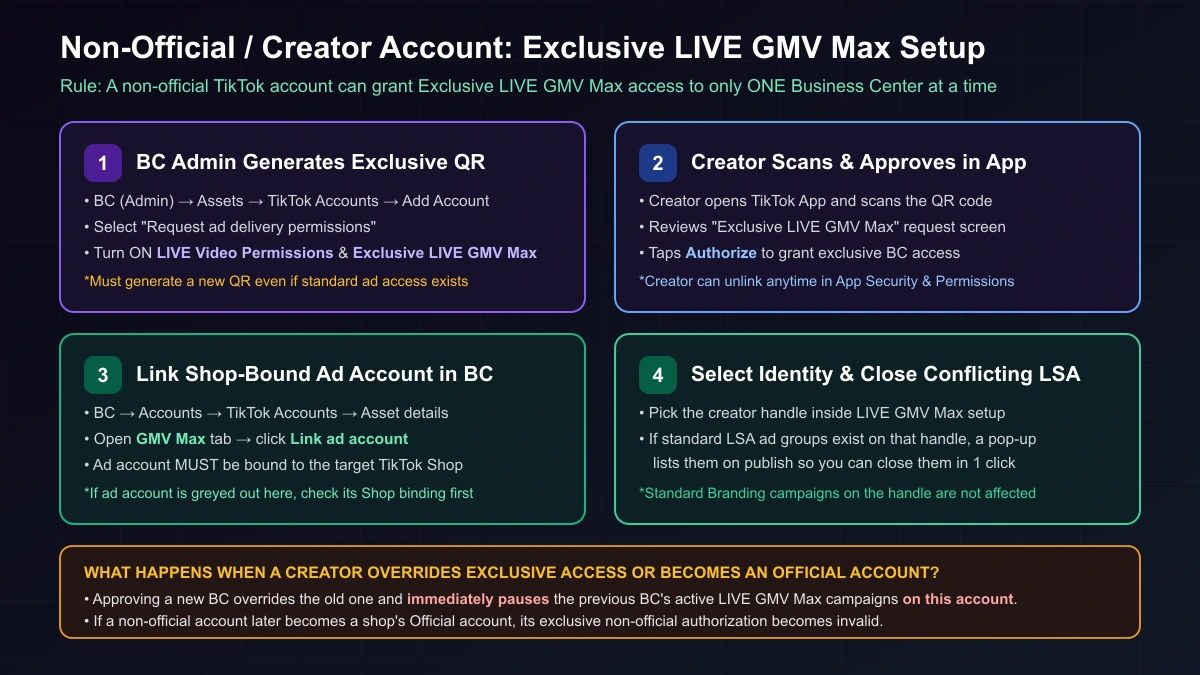
- Generate an Exclusive QR Code (BC Admin): In the Business Center managing the store (agencies use the agency BC), open Assets → Accounts → TikTok Accounts → Add TikTok account → Request ad delivery permissions. Turn on LIVE Video Permissions and Turn on Exclusive LIVE GMV Max permission, then generate a new QR code—even if standard ad permissions exist.
- Creator Scans and Approves: The creator scans the QR code in the TikTok app and taps Authorize on the Exclusive LIVE GMV Max prompt.
- Link Your Shop-Bound Ad Account: In Business Center → Accounts → TikTok Accounts, open the creator's Asset details → GMV Max tab, click Link ad account, and confirm. The ad account must be bound to your TikTok Shop (if greyed out, check its shop binding).
- Select Identity & Close Conflicting LSA: Pick the creator handle in LIVE GMV Max setup. If standard LSA ad groups run on that handle—even under other ad accounts—a publish pop-up lets you close them in one click.
Overriding or Unlinking Exclusive Access
- Overriding pauses the previous BC's campaigns on this account: Approving Business Center B overrides Business Center A ("Authorizing this user will override the previous exclusive permissions given") and immediately pauses Business Center A's active LIVE GMV Max campaigns that use this creator account. Branding campaigns are unaffected.
- Unlinking or becoming Official: Creators can unlink a BC anytime in the TikTok app (Settings and privacy → Security and permissions → Apps and service permissions → TikTok Business Center → Unlink), immediately pausing active campaigns. If a non-official account becomes a shop's Official account, its exclusive authorization becomes invalid.
Greyed-Out "Create GMV Max Ads" Button & Launch Side Effects
- In Ads Manager: A disabled Create GMV Max ads button means you lack Operator or Admin access on the ad account, or the ad account lacks GMV Max authorization for the shop (for owned shops, connect the shop to your BC and hold Shop Admin or Advertising Manager permissions).
- In Seller Center: You need Admin or Ads Tab permissions, and campaigns land in the shop's primary ad account. See how to change or reclaim your GMV Max primary ad account.
Once your primary ad account runs an active LIVE GMV Max campaign, TikTok automatically pauses existing LIVE Shopping Ads for the shop's Official account—and they do not restart automatically after LIVE GMV Max ends.
FAQ
Can I run LIVE GMV Max for our Official account and a Creator account at the same time?
TikTok states there can only be one LIVE GMV Max campaign for one TikTok Identity, and a single TikTok account cannot run LIVE GMV Max and LSA simultaneously. Its creation guide also notes "if you're already running LIVE Shopping Ads or LIVE GMV Max, you'll need to turn them off before you can create a new LIVE GMV Max campaign" without clarifying whether that check is per handle or per shop. Check your LIVE source dropdown while the first campaign is active.
Is LIVE GMV Max available in my market?
TikTok's creation guide lists Indonesia, Malaysia, the Philippines, Thailand, Vietnam, and Singapore, while regional announcements cover additional markets. Treat Promote LIVE in Seller Center or Ads Manager as the source of truth.
Monitor LIVE GMV Max Spend and ROI with AdRate
Once your identity is connected, AdRate helps you monitor LIVE GMV Max spend and ROI with automated rules during broadcast windows.
Official TikTok new advertiser program - exclusive benefits for new advertisers
Open a new TikTok ad account and earn official ad credit as you spend
Spend $200 within 30 days of signing up and get $200 in ad credit, rising to $6,000 when you spend $10,000. Credits go straight into your TikTok ad campaigns.
Coupons are issued by TikTok once it confirms you qualify as a new advertiser. Actual issuance and tiers are shown on the Coupon Progress page inside your TikTok Ads account.