TikTok Ads Preview Not Loading? Fix Black Video, QR & Links
TikTok Ads preview not loading or showing a black video? Check ad approval rules, 7-day QR, 24-hour feed, and 30-day URL limits, roles, and cache fixes.
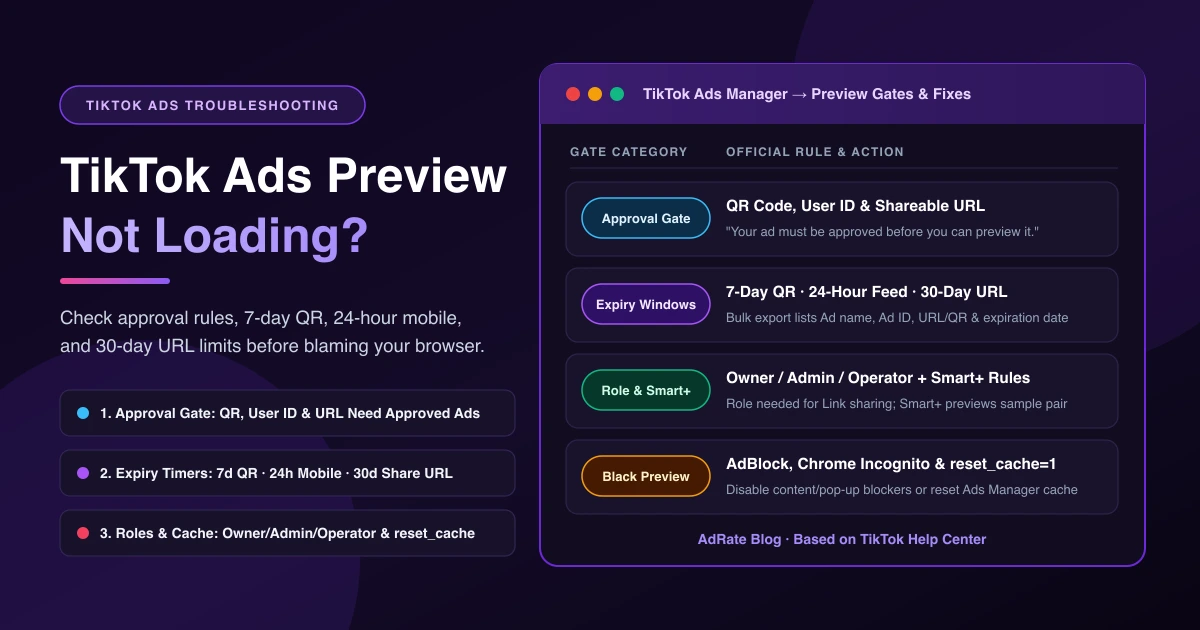
You have uploaded your video and built the ad, but the TikTok Ads preview is not loading: the right-hand box shows a blank or black frame, or a preview link or QR code won't open, and client sign-off stalls. First, isolate the symptom: if the whole dashboard fails to open, see TikTok Ads Manager not working; if your video failed during upload, check TikTok Ads failed to upload.
When media is already uploaded, a TikTok ad preview not working is often not caused by a broken file. Instead, it hits one of TikTok's method-specific gates: the ad is not approved yet, the timer expired (7 days for QR codes, 24 hours for mobile feed previews, or 30 days for shareable URLs), your role cannot toggle on link sharing, or Smart+ is showing a sample combination.
Which TikTok Ad Preview Method Are You Using?
Per TikTok's How to preview ads during ad creation, Ads Manager offers several preview options: the right-hand creation preview box, the Ad Preview Tool, mobile QR codes, User ID mobile previews, desktop shareable URLs, and bulk-generated URLs or QR codes. Match your method to the official rules below:
| Preview Method | Where to Generate | Gate & Role | Expiry Window | Where & How It Displays |
|---|---|---|---|---|
| Creation Preview Box | Right-hand side of ad creation page | No approval needed | Active while editing | Desktop browser pane; not device-specific; Smart+ shows a sample creative/text pair |
| QR Code Preview | Ad list → Preview (Smart+: View data → Creatives → Preview) | Ad must be approved | QR valid 7 days; feed preview lasts 24 hours | TikTok app: scan QR, tap Preview Ad, swipe For You feed until disclaimer popup appears |
| User ID Preview | Ad preview menu in Ads Manager | Ad must be approved | Preview lasts 24 hours | Mobile: open the same app as your ad placement and refresh home screen |
| Shareable URL | Ad preview menu (Toggle "on" next to Link sharing) | Approved ad + owner, admin, or operator role | Valid for 30 days | Desktop browser (no password; cannot click CTAs, landing pages, or comment) |
| Bulk URLs & QR Codes | Download all → choose method → Export (per-ad preview settings don't carry over) | Approved ads + owner, admin, or operator role | Lists expiration date (30d URL / 7d QR) | Spreadsheet with 4 columns: Ad name, Ad ID, URL/QR code, and expiration date |
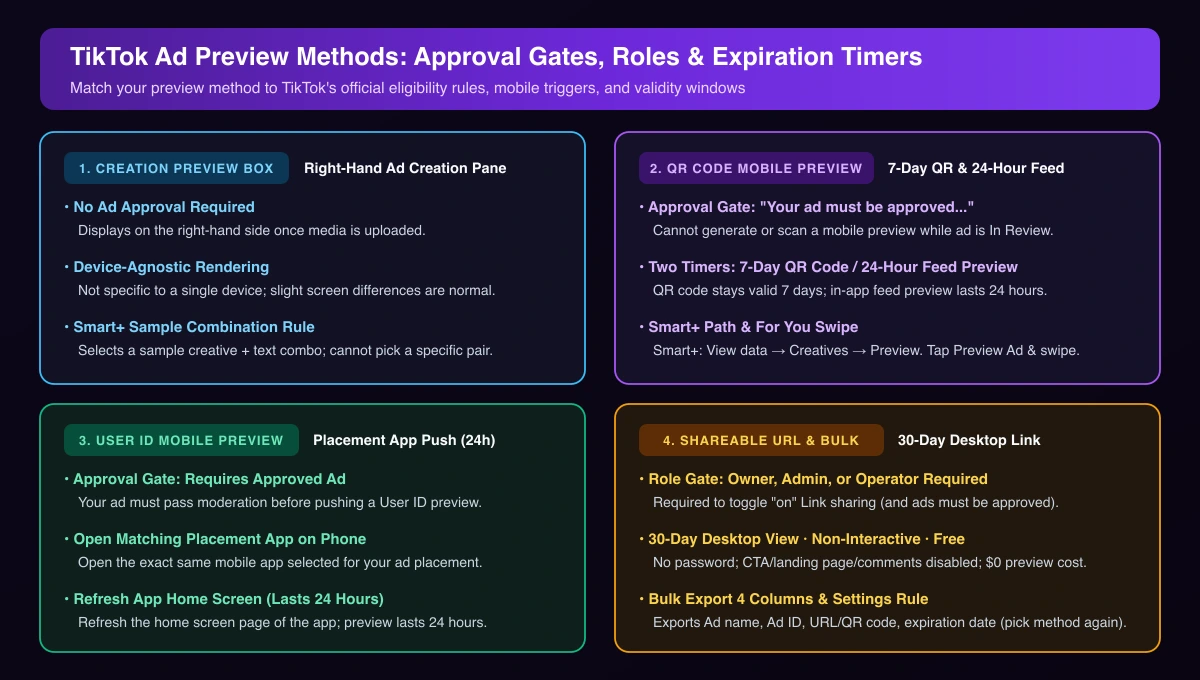
Why QR Codes, User IDs, and Shareable Links Won't Generate or Open
1. Your Ad Must Be Approved Before You Can Preview It
Across TikTok's guides for QR code, User ID, and bulk preview generation, the prerequisite is identical: "Your ad must be approved before you can preview it." External links, QR codes, and User ID previews cannot be generated while an ad is in review.
If moderation stalls, see how to resolve TikTok ads stuck in review. For Spark Ads, also confirm creator post authorization is active—see TikTok Ads asset unavailable or authorization revoked and Spark Ads code error notifications.
2. Expired Timers: 7-Day QR, 24-Hour Feed, and 30-Day URL Limits
When a TikTok preview link is not working or an older QR code fails to load, check which timer elapsed:
- QR code (7 days): Generated QR codes stay valid for 7 days.
- In-app preview (24 hours): After scanning a QR code or pushing a User ID preview, the mobile preview lasts 24 hours, after which you must rescan or resend.
- Shareable URL (30 days): Per TikTok's shareable URL guide, desktop links expire after 30 days (check the expiration date column in bulk exports).
3. Can't Toggle On Link Sharing? Check Your Role
Creating a shareable URL requires toggling "on" next to Link sharing. Per TikTok's bulk preview guide, "You must be an ad account owner, admin, or operator to be able to toggle 'on' link sharing." Analysts cannot enable it. Also, preview settings you pick for individual ads (method, placement, feed type) don't carry over to a bulk export—choose the method again via Download all before exporting.
Why You Can't Find the Preview on Your Phone or in Smart+ Campaigns
Even with an approved ad and an active timer, two platform behaviors often look like a failed preview:
- Mobile feed triggers: After scanning a QR code in TikTok, tap Preview Ad and swipe through the For You feed until you see the ad preview disclaimer popup. For a User ID preview, open the same app on your phone as the one you selected for your ad placement and refresh the home screen page.
- Smart+ menu path and sample combinations: For Smart+ campaigns, open QR previews via Campaign / Ad group list → View data → Creatives → Preview. Also, per TikTok's ad creation guide, when Smart+ generates multiple asset combinations, you can preview a specific creative, but "the ad preview will select a sample combination of creative and text out of the possible combinations. There is no way to specify a specific creative and text combination to preview."
Fixing a Black Video or Spinning Preview Box in TikTok Ads Manager
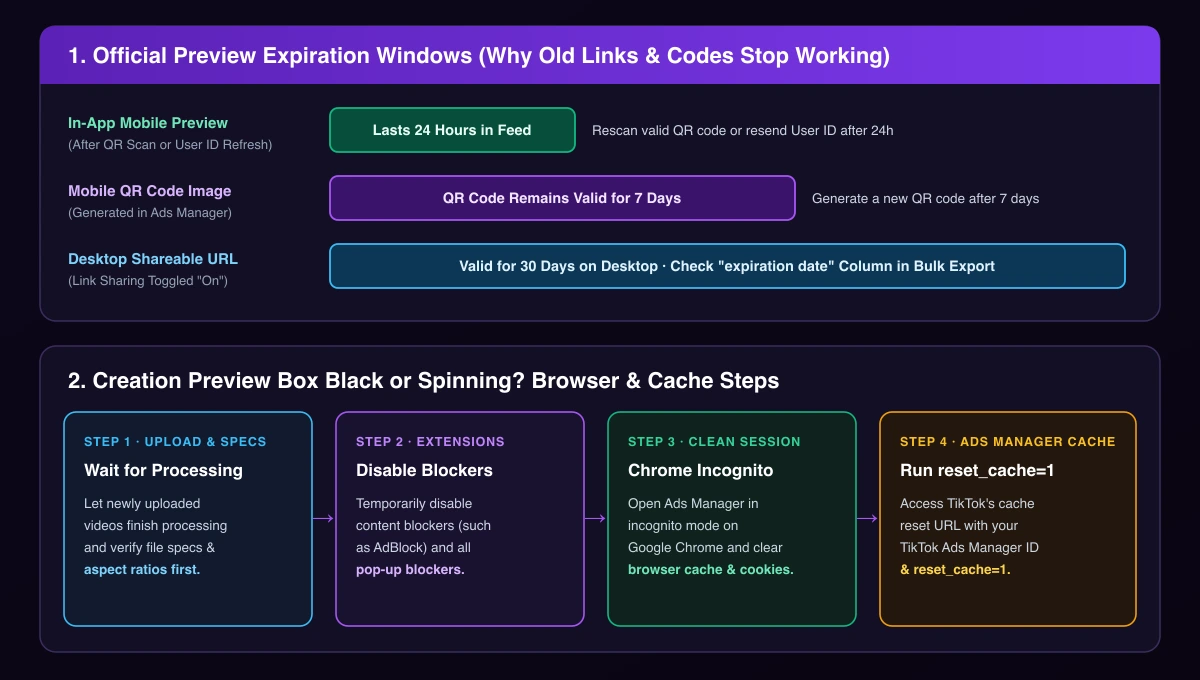
If the TikTok ad preview shows a black video, or the right-hand preview box keeps spinning during ad creation:
- Let newly uploaded videos finish processing: Wait briefly after uploading and verify the file meets TikTok ad specs, sizes, and aspect ratios.
- Run TikTok's browser troubleshooting steps: In How to troubleshoot ad creation in TikTok Ads Manager, TikTok lists these browser steps:
- Temporarily disable content blockers (such as AdBlock) and ensure all ad blockers and pop-up blockers are disabled.
- Open the page in incognito mode on Google Chrome.
- Clear your browser's cache and cookies.
- Clear your Ads Manager cache via
https://ads.tiktok.com/i18n/perf/adgroup?aadvid=XXX&reset_cache=1(replaceXXXwith your TikTok Ads Manager ID).
What If You See "Creative Asset Not Ready Yet"?
Some media buyers report seeing "creative asset not ready yet" when pulling a preview link. TikTok's official documentation does not mention this phrase or define a timer; practically, it may point to the gates above—confirm the ad is approved, let newly uploaded videos finish processing, and regenerate the link.
Frequently Asked Questions
Are you charged for ad previews, and are preview URLs password protected?
No to both. Per TikTok's shareable URL guide, "You will not be charged for ad previews," and ad preview URLs are not password protected—anyone with the link can view it on desktop for 30 days (without clicking CTAs, landing pages, or comments). Because previews are not device-specific, slight visual differences across screens are also normal.
Once your client signs off on exported preview links and campaigns go live, AdRate helps you automate what happens next—using automated rules to watch spend and performance across live campaigns as soon as approved ads start delivering.
Official TikTok new advertiser program - exclusive benefits for new advertisers
Open a new TikTok ad account and earn official ad credit as you spend
Spend $200 within 30 days of signing up and get $200 in ad credit, rising to $6,000 when you spend $10,000. Credits go straight into your TikTok ad campaigns.
Coupons are issued by TikTok once it confirms you qualify as a new advertiser. Actual issuance and tiers are shown on the Coupon Progress page inside your TikTok Ads account.