Can't Remove TikTok Promoted Products After Turning Off Catalog?
Turned off Catalog campaign but still can't remove TikTok promoted products at the ad level? Clear the auto-generated catalog at all 3 setup levels.
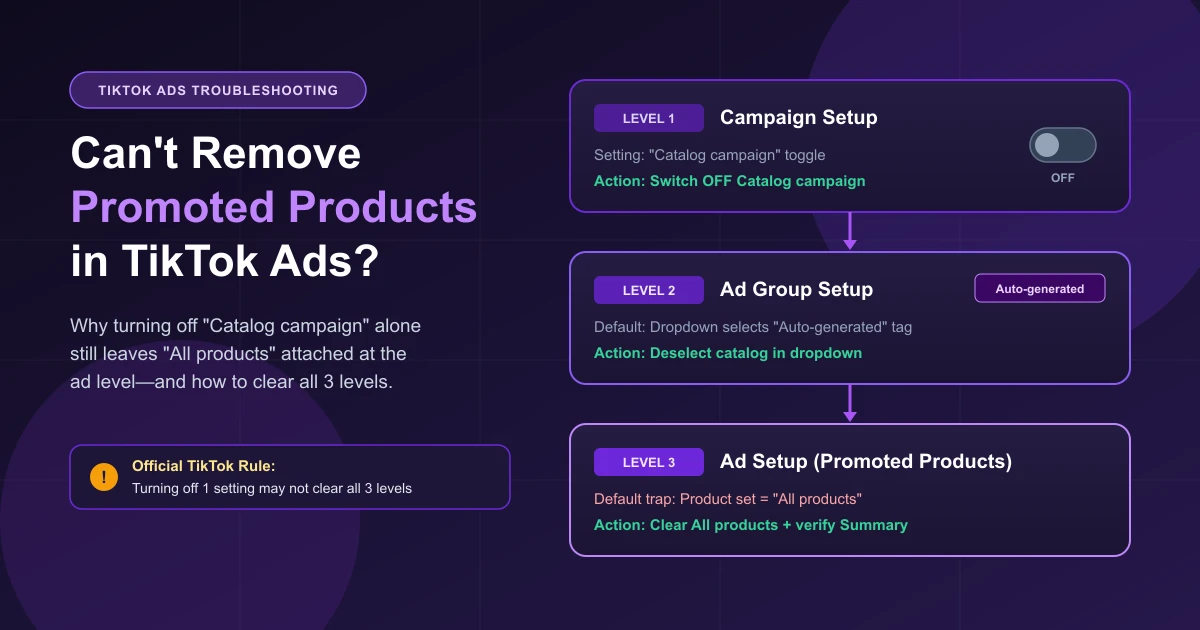
You build a Website Sales campaign, turn off Catalog campaign, and still can't remove TikTok promoted products at the ad level. That usually means an auto-generated or synced catalog is still selected deeper in the setup flow. You want a regular video ad with a landing page link, yet the ad level forces All products into your setup and can block you from publishing.
Flipping the campaign toggle alone may not clear the selections further down. As TikTok's How to manage auto-generated catalogs in TikTok Ads Manager guide states: "Turning off only one setting may not remove every catalog-related selection from the campaign setup flow." To publish a plain video ad, you need to clear catalog selections across the campaign, ad group, and ad levels before saving.
Why Promoted Products Stick After You Turn Off Catalog Campaign
Across r/TikTokAds, buyers hit this exact wall. One advertiser who turned off Catalog campaign on a Website Sales campaign reported that "TikTok auto-adds" every catalog item at the ad level anyway: "I just want a normal video ad with a link." An agency buyer in another thread noted that "promoted products are default added to every ad" even when "This client has no catalog," leaving them where "I can't publish any new ads." A third thread asked in its title: "possible to get rid of Promoted Products at ad level?"
This happens because TikTok Ads Manager can populate catalog defaults at three levels at once: campaign setup (Catalog campaign turned on by default), ad group setup (catalog dropdown auto-selecting the Auto-generated catalog), and ad setup (where Promoted products / product selection may default to all products). Each level keeps its own catalog setting, so turning off Catalog campaign may leave the ad group or ad selection in place. That is why TikTok tells you to check all three levels.
Step 1: Check Catalog Manager for the "Auto-generated" Tag
Open Catalog Manager first to see whether your catalog carries an Auto-generated tag.
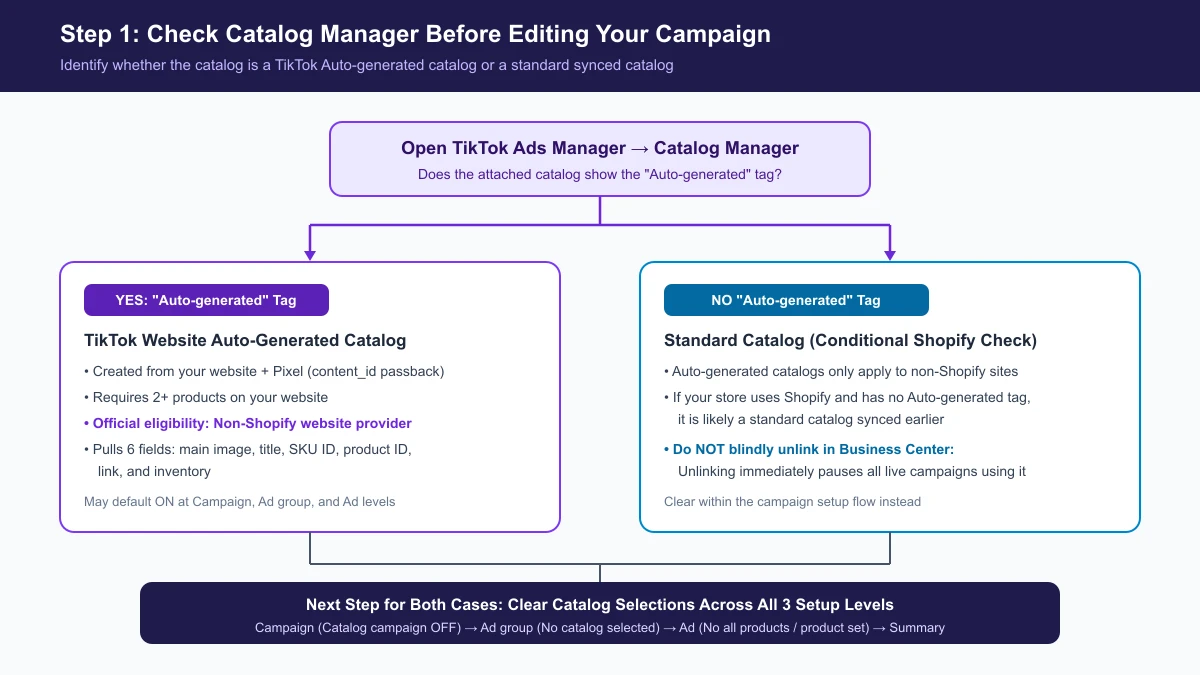
1. Catalog Has the "Auto-generated" Tag (Non-Shopify Websites)
Per TikTok's auto-generated catalog guide, "An auto-generated catalog is a catalog that TikTok may create for eligible advertisers based on product information from their website."
According to How to use auto-generated catalogs for commerce, TikTok creates this catalog from your website and pixel to support Smart+ catalog ads when you meet three requirements:
- You have a TikTok Pixel that passes back product IDs (content_id) with its events (for event issues, see TikTok Pixel not ready for campaign fixes).
- You offer 2 or more products on your website.
- You must be a non-Shopify website provider.
2. Your Store Uses Shopify (Conditional Check)
Because TikTok's auto-generated catalog eligibility requires a non-Shopify website provider, a Shopify store seeing All products at the ad level is usually dealing with a different catalog. Check Catalog Manager first: if the catalog does not show an Auto-generated tag, it is likely a standard catalog synced to your account earlier rather than one created automatically by TikTok. Either way, the 3-level removal checklist below works the same.
Step 2: Clear Catalog Selections Across All 3 Setup Levels
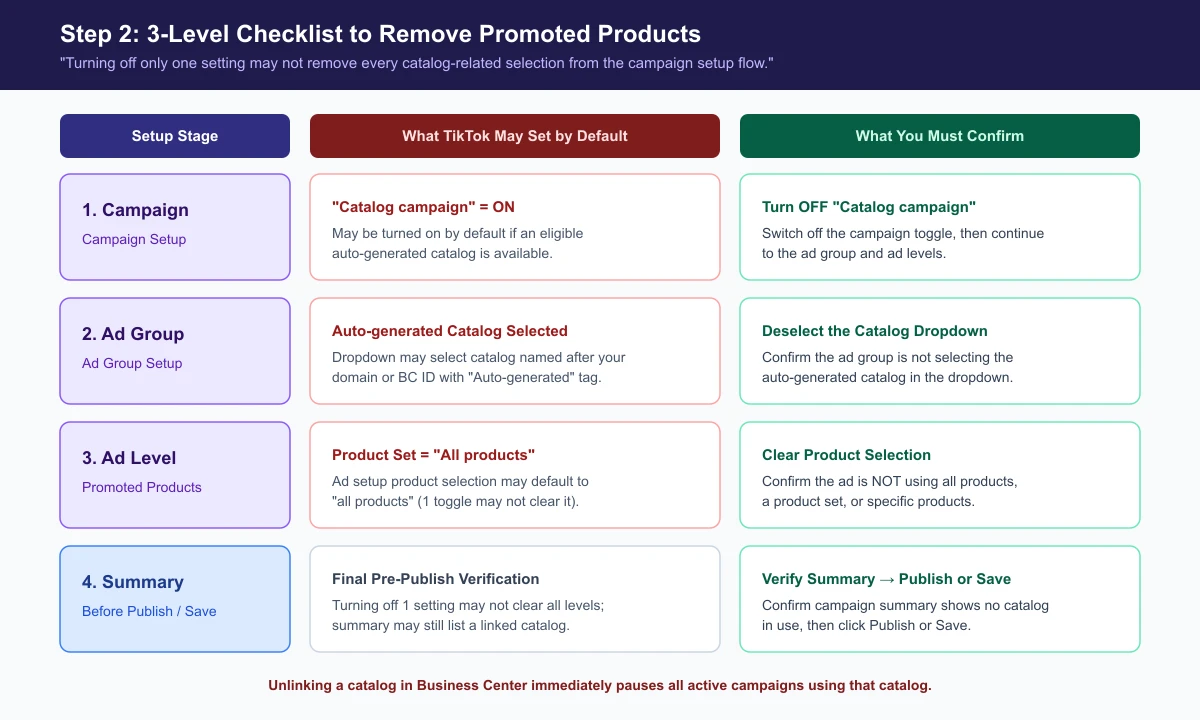
If you still can't remove promoted products from your ad, work through TikTok's official 3-level checklist in order:
| Level | TikTok Default Behavior | What You Need to Confirm |
|---|---|---|
| 1. Campaign | Catalog campaign may be turned on by default when an eligible auto-generated catalog is available. | Turn off the Catalog campaign setting. |
| 2. Ad group | The auto-generated catalog (referencing your website domain or Business Center ID with an Auto-generated tag) may be selected automatically. | Check the catalog dropdown and confirm no auto-generated catalog is selected. |
| 3. Ad | Under ad setup (Promoted products / product selection), the product set may default to all products. | Confirm the ad is not using all products, a product set, or specific products. |
| 4. Summary | Any remaining selection keeps the catalog attached to the campaign. | Review the campaign summary to confirm no catalog is used, then click Publish or Save. |
If you actually plan to run catalog ads later, see our TikTok catalog ads and product sets guide, TikTok Smart+ 30-day playbook, and TikTok Smart+ module-level control SOP.
Step 3: If the Catalog Still Won't Go Away
Editing Existing Ads vs. Rebuilding
TikTok's checklist ends with Publish or Save, covering both new and edited campaigns. Open the existing campaign, check all three levels and the campaign summary, and click Save. If a published ad group locks its catalog selection so it cannot be cleared, create a new campaign and clear all three levels before publishing.
Can You Permanently Delete an Auto-Generated Catalog?
TikTok's documentation does not offer a way to permanently delete an auto-generated catalog or stop TikTok from generating one. If you clear all three levels and the ad still forces Promoted products, submit a TikTok Support ticket with your Ad Account ID, Campaign/Ad Group IDs, and an ad-level screenshot.
Warning Before Unlinking a Catalog in Business Center
Before a Business Center Admin unlinks a catalog under Assets → Catalogs → View → Advertiser Accounts → Remove (or Accounts → Advertiser accounts → [Account] → Assets → Catalogs → Remove), check TikTok's unlink catalogs guide:
Unlinking a catalog will immediately pause all active campaigns that are using the catalog and will revoke catalog access for all users on the affected ad account. Relinking the catalog will not automatically restart any paused campaigns.
Copying Smart+ Campaigns Without the Auto-Attached Catalog
In a multi-account TikTok Ads workflow, Smart+ website campaigns often end up with the campaign catalog switch off while the ad group and ad levels still carry an automatically attached catalog. When you copy Smart+ campaigns across accounts with AdRate, AdRate strips out auto-attached catalogs that your source ads never actively used—while preserving catalog settings on ads where you intentionally chose product sets or items.
FAQ: TikTok Auto-Generated Catalogs
What product fields does an auto-generated catalog pull?
TikTok only pulls six fields from your website: main image, title, SKU ID, product ID, link, and inventory.
Why did an edited product stop updating automatically?
Manually editing a product may stop automatic updates for that item. Click Resume in Catalog Manager when available to restart updates.
Can I upgrade an auto-generated catalog to a standard catalog?
Yes. For full editing and management control, TikTok may prompt you to upgrade the auto-generated catalog to a standard catalog.
Why do I see Promoted products on a Shopify store?
Auto-generated catalogs require a non-Shopify website provider. On Shopify, check Catalog Manager: if there is no Auto-generated tag, it is likely a previously synced standard catalog. Clear it across all three campaign levels before publishing.
Official TikTok new advertiser program - exclusive benefits for new advertisers
Open a new TikTok ad account and earn official ad credit as you spend
Spend $200 within 30 days of signing up and get $200 in ad credit, rising to $6,000 when you spend $10,000. Credits go straight into your TikTok ad campaigns.
Coupons are issued by TikTok once it confirms you qualify as a new advertiser. Actual issuance and tiers are shown on the Coupon Progress page inside your TikTok Ads account.