How to Share a TikTok Pixel With Another Ad Account (Not Showing)
Pixel missing from another ad account's dropdown? Move it into Business Center, assign it under Linked Accounts, then confirm it with five checks.
You start an ad group in a new or newly inherited ad account, open the dropdown under Data Connection, and the Pixel you've used for months isn't there. If you're working out how to share a TikTok Pixel with another ad account, the short version: sharing runs through Business Center, and it breaks at one of five predictable points.
TikTok spreads the fix across several help pages; here it is in one place, in the order worth checking.
Quick answer: why your Pixel isn't in the other ad account
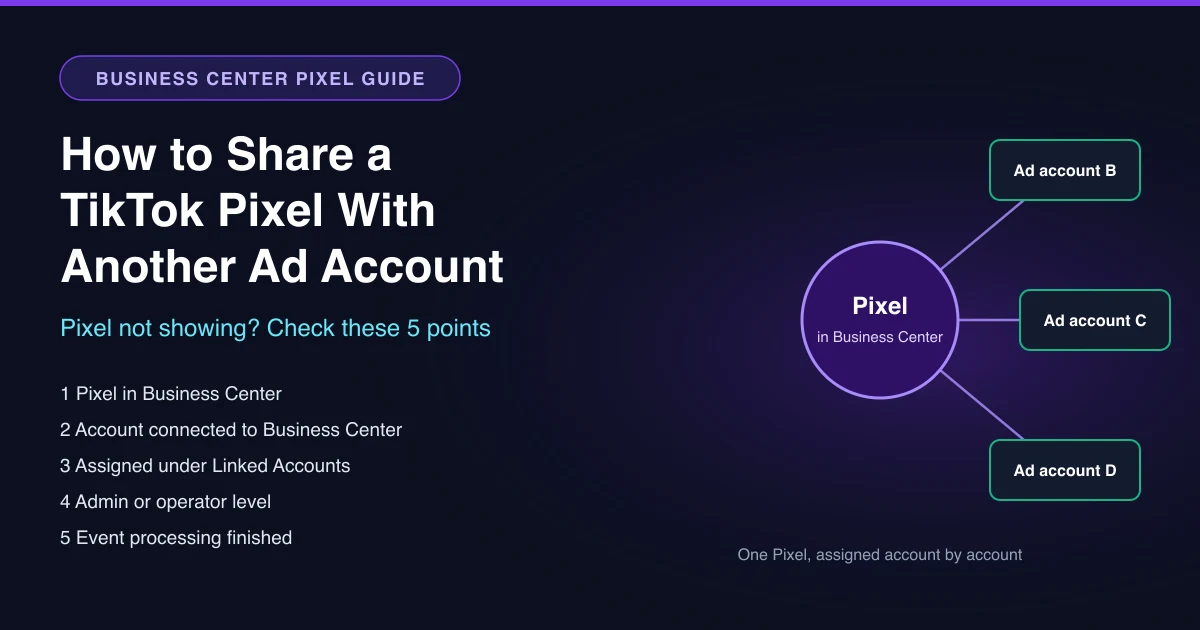
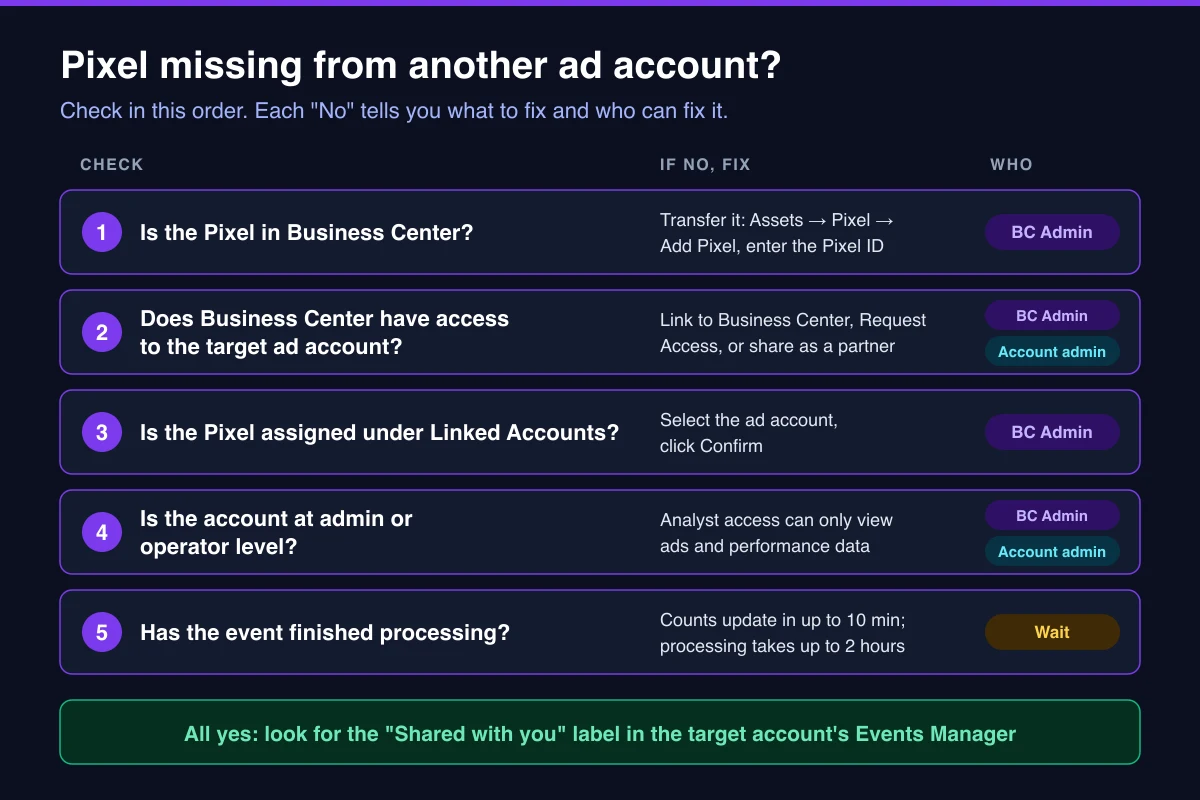
A Pixel doesn't appear in a second ad account on its own. Four things have to be true:
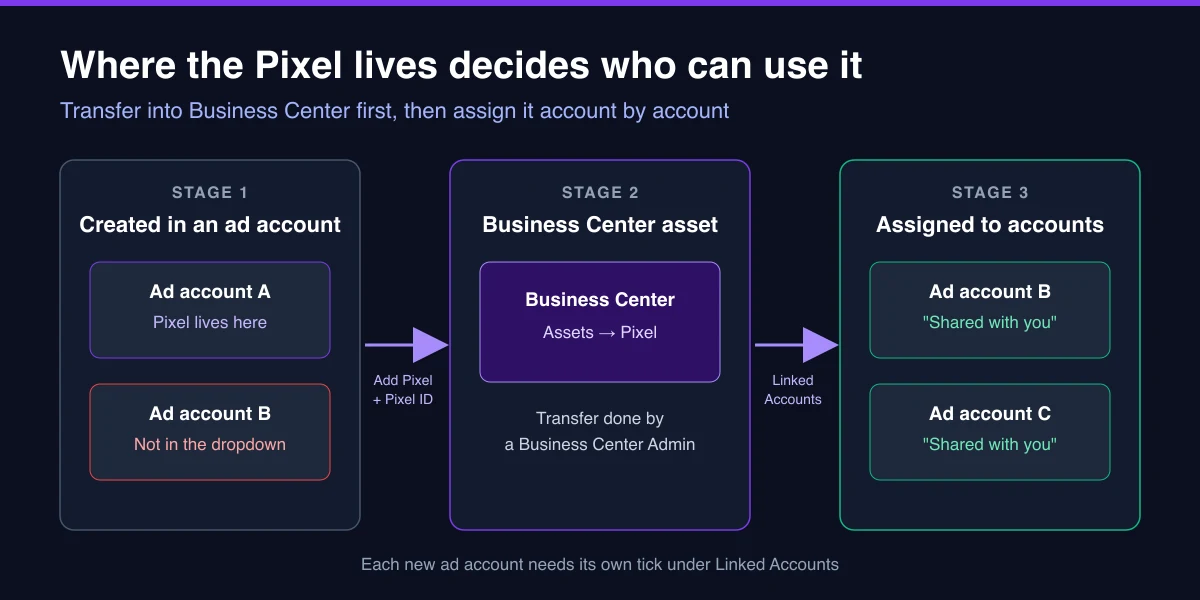
- The Pixel sits in Business Center. TikTok requires a Pixel created in an ad account to be transferred into Business Center before it can be shared.
- Business Center has access to the target ad account.
- The Pixel is assigned to that account under Assets → Pixel → Linked Accounts.
- The target account has admin or operator level access.
If all four hold, what's left is event processing (Step 5).
Step 1: Find out who owns the Pixel right now
In Business Center, go to Assets → Pixel. If the Pixel is listed, it's already a Business Center asset; skip to Step 3. If not, it most likely still lives in the ad account where it was created and needs transferring. You can confirm it exists, and is receiving event data, in that account's Tools → Events Manager under the Website Pixel option.
Where to find your TikTok Pixel ID
The transfer asks for the Pixel ID, which is why this question comes up halfway through the fix. In the ad account that holds the Pixel, click Tools, select Events, choose Data sources from the sidebar, and click the Pixel to open its details.
Step 2: Transfer the Pixel into Business Center
Only a Business Center Admin can do this. In TikTok's roles table, Standard members can't transfer Pixels, link them to ad accounts or share them with partners, so if that's your role, hand this to your Admin.
The transfer: log in to Business Center as Admin, go to Assets → Pixel, click Add Pixel, enter the Pixel ID in the Transfer Pixel pop-up, and click Confirm.
Step 3: Make sure the target ad account is in the same Business Center
This is where agencies get stuck most: Linked Accounts only lists ad accounts the Business Center has access to.
| Target account | Who acts | Path |
|---|---|---|
| A standalone account you admin | Ad account admin | Tools → Account setup → Permission management → Link to Business Center |
| A client's or someone else's account | BC Admin requests, account side approves | Accounts → Advertiser accounts → Add advertiser account → Request Access, then enter the ad account ID |
| An account owned by another Business Center | BC Admin | Share the Pixel with that Business Center as a partner |
Three details are easy to miss. Linking to an existing Business Center only works for standalone accounts with an account manager. An access request waits where people rarely look: the account admin (or the creator, if the account belongs to no Business Center) finds it in Ads Manager under the Notifications icon, on the Business Center tab. And disapproved ad accounts can't be requested at all.
The request also asks for a permission level: Admin, Operator or Analyst. Pick Admin or Operator if the account will run campaigns with the shared Pixel.
For another Business Center's account, open the Pixel in Assets → Pixel, go to Partners, click Add Partner and enter their Business Center ID. TikTok's guide stops there, so agree next steps with their Admin. Moving the account instead? Our Business Center transfer guide explains why Pixels should be shared before the move.
Step 4: Assign the Pixel under Linked Accounts
Seeing a Pixel in Business Center doesn't mean every ad account there can use it. As Admin, go to Assets → Pixel, select the Pixel, open Linked Accounts, select the ad accounts you want and click Confirm. Labels may differ slightly in newer layouts; these follow TikTok's help center.
Step 5: Confirm it worked in the target account
Instead of refreshing the dropdown, go to Tools → Events in the target account. A shared Pixel there carries the label "Shared with you".
Label there but still can't build a campaign? TikTok states that to create campaigns using a shared Pixel, the ad account must be at an admin or operator level; Analyst access can only view ads and performance data.
If the Pixel appears but your optimization event doesn't, that's an event problem. Event counts can take up to 10 minutes to update, and TikTok allows up to 2 hours for an event to be processed and eligible for campaign creation. Seeing Not ready for campaign? Use our Pixel not ready for campaign fix.
Before you unshare a Pixel
Unsharing means clicking the trash icon next to the ad account under Linked Accounts. That account then can't use the Pixel for new ads, and its existing ads using it are paused. TikTok also says active campaigns tied to the shared Pixel must be stopped manually before you proceed, which matters most when cleaning up a former client's accounts. For live ads already reporting a Pixel as unavailable, see assets that become unavailable after access is revoked.
Sharing one Pixel across many client accounts
All of this is once per account, not once per Pixel. Every new account needs connecting and ticking, so build it into account setup. Our cross-account management workflow shows where it fits, and the agency account checklist covers Business Center roles.
It usually comes up alongside a second question: can you copy ads from one ad account to another? You can with AdRate, and it takes part of the Pixel work off your plate. When it copies ads across accounts, it links the Business Center Pixel used by the source ads to the target account automatically, and tells you when a link doesn't go through. Try AdRate free.
FAQ
How do I share a pixel to an ad account?
Transfer the Pixel into Business Center and make sure Business Center has access to the ad account. Then a Business Center Admin opens Assets → Pixel, selects the Pixel, goes to Linked Accounts, ticks the account and clicks Confirm.
Who can share a TikTok Pixel with another ad account?
Only a Business Center Admin. Standard members can manage just the Pixels assigned to them.
Can I share a Pixel with a teammate instead of an ad account?
Yes. On the Pixel in Business Center, go to Members, click Assign new member, pick people from your Business Center and set the Pixel permission each one gets.
Official TikTok new advertiser program - exclusive benefits for new advertisers
Open a new TikTok ad account and earn official ad credit as you spend
Spend $200 within 30 days of signing up and get $200 in ad credit, rising to $6,000 when you spend $10,000. Credits go straight into your TikTok ad campaigns.
Coupons are issued by TikTok once it confirms you qualify as a new advertiser. Actual issuance and tiers are shown on the Coupon Progress page inside your TikTok Ads account.