TikTok Ad Account Transfer to Business Center (& Why It Fails)
Learn how Business Center admins complete a TikTok ad account transfer, fix blocked requests, and protect balances, pixels, and active campaigns.
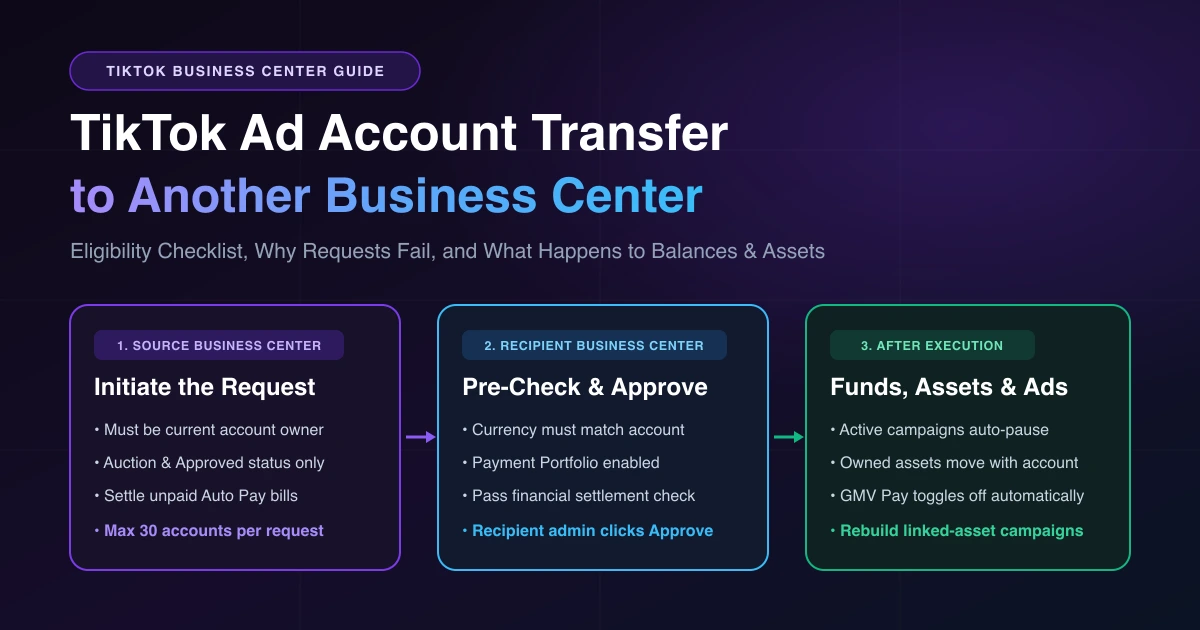
When an agency hands an account back to a brand or your company consolidates workspaces, a TikTok ad account transfer moves ownership of the advertiser account from one Business Center to another. Under TikTok's ad account transfer guide (September 2026), a source Business Center admin starts the request, a recipient admin approves it, and one request covers up to 30 advertiser accounts. Active campaigns pause automatically during the move and must be resumed manually in the recipient Business Center.
First, make sure you actually need to move ownership. If an agency or teammate only needs access to run ads, add them as a Partner or assign member permissions—see connecting a TikTok account to Ads Manager and fixing permission errors. To switch which account runs Shop ads without moving ownership, see changing your GMV Max primary ad account.
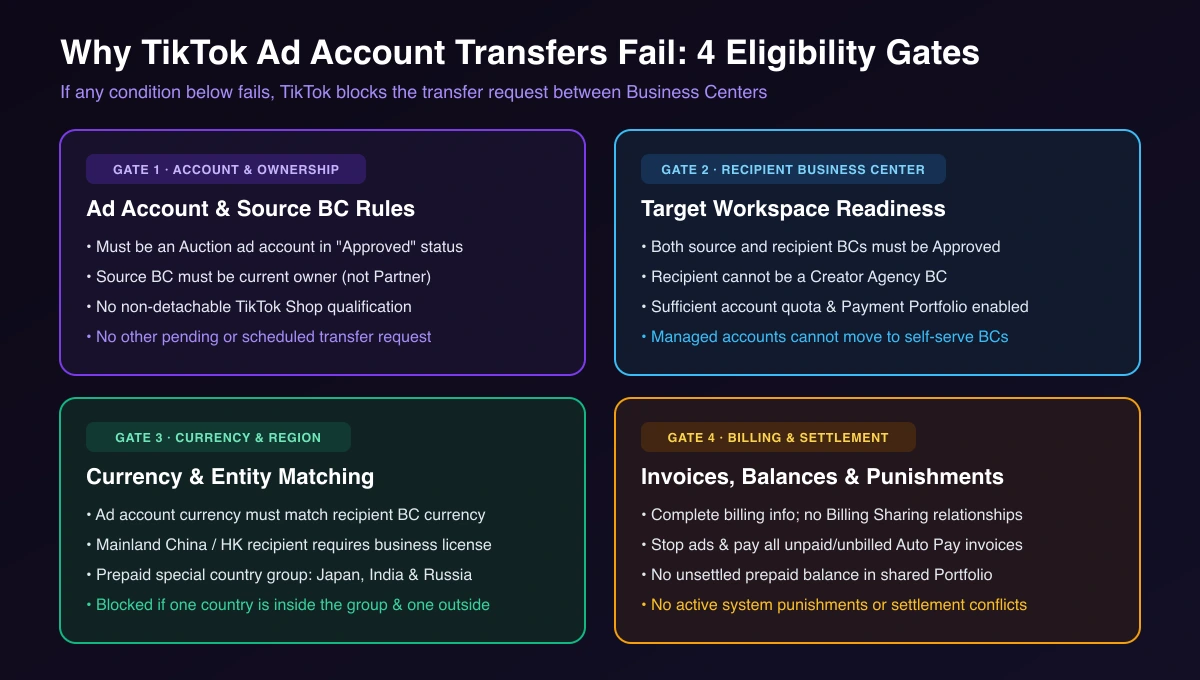
Eligibility Checklist: Why Your Transfer Is Blocked
Check ownership and currency first: only the owning Business Center can start a transfer, and currency is fixed, so a currency mismatch means a new account. If both line up, check billing and Auto Pay next—those blocks clear once you stop active ads, pay open invoices, or let a pending payment change finish.
| Area | Official Requirement | What You Can Do |
|---|---|---|
| Account & Shop | Auction account in "Approved" status (not reservation); no non-detachable TikTok Shop qualification; no pending or scheduled transfer request. | Wait for any pending request to finish; otherwise open a new account in the recipient BC. |
| Ownership | Source BC is the current owner, and the account is not under the recipient BC. | Filter Advertiser accounts by "Owned by this Business Center" vs. "Owned by partner." Partners cannot start transfers. |
| Recipient BC | Both BCs approved; recipient is not a Creator Agency BC, has sufficient quota, and enabled Payment Portfolio (credit, balance, and payment workspace). Managed accounts cannot move to self-serve BCs. | Enable Payment Portfolio in the recipient BC; other blocks require a new account in the recipient BC. |
| Currency & region | Ad account currency must match recipient BC currency. Mainland China or Hong Kong recipients require business license verification. | Verify the business license for mainland China or Hong Kong recipients; if currencies differ, open a new account in the recipient BC. |
| Billing & standing | Complete advertiser and billing info; no Billing Sharing or unsupported billing relationships; no pending payment or billing changes; no unsettled prepaid balance in a shared Payment Portfolio; no unpaid or unbilled Auto Pay invoices; no active system punishment; no conflicting settlement request. | Complete billing info, let payment changes finish, and for Auto Pay, stop campaigns and pay open invoices. Other blocks require a new account in the recipient BC. |
| Prepaid countries | Japan, India, and Russia form a special prepaid billing country group; blocked if one billing country is inside this group and the other is outside. | Can't be fixed in place—open a new account in the recipient BC. |
Step-by-Step: How to Transfer a TikTok Ad Account
1. Start in the Source Business Center
- Sign in as a source Business Center admin and open Accounts → All accounts → Advertiser accounts.
- Click More next to Add advertiser account and select Transfer advertiser accounts.
- Enter the recipient Business Center ID and pick an immediate or scheduled time.
- Select up to 30 advertiser accounts, click Next, review funds and payment info, click Next, and click Confirm. Processing takes several minutes to a few hours.
2. Approve in the Recipient Business Center
- A recipient Business Center admin opens the request via the email link, home page account transfer action card, or Advertiser accounts banner.
- Pass the funds and financial asset settlement pre-check covering balance, billing relationships, payment accounts, collections, and conflicting settlement requests (same-company moves may skip certain checks).
- Optionally request linked-asset permissions and pre-assign members, then click Approve request (or Reject request).
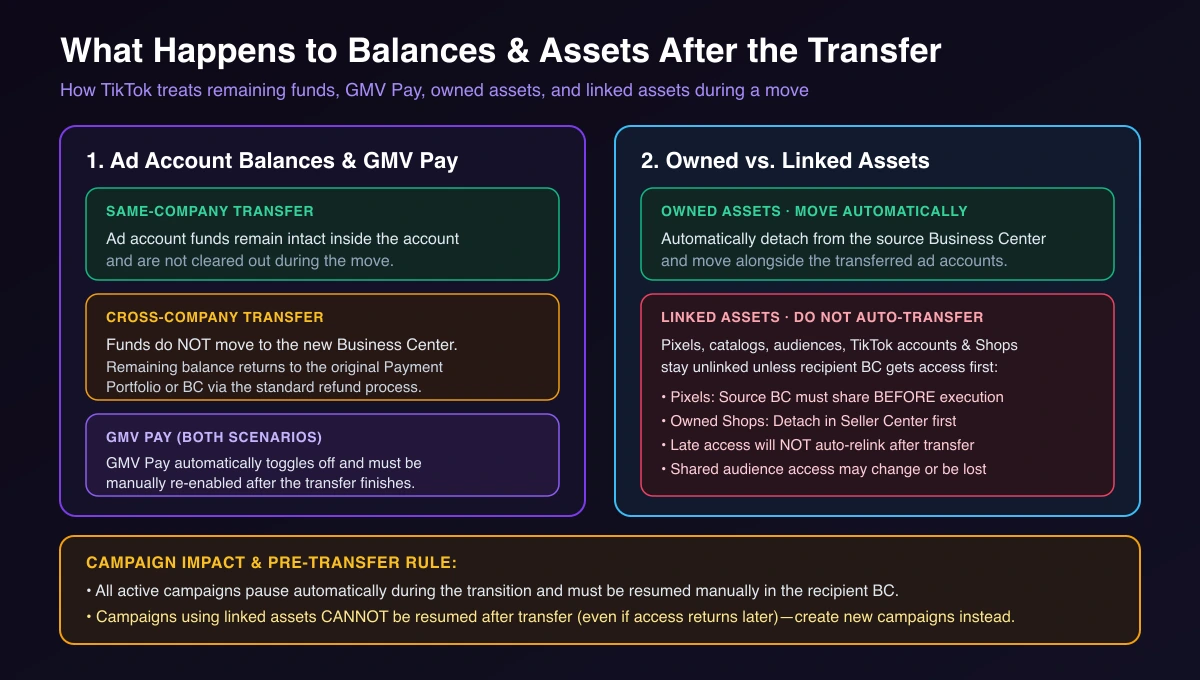
Where Balances and Assets Go After the Move
- Same-Company Transfer: Ad account funds remain intact and are not cleared out.
- Cross-Company Transfer: Ad account funds do not move to the new Business Center. Remaining balance returns to the original Payment Portfolio or Business Center via TikTok's standard refund process—see ad account refunds and insufficient balance fixes.
- GMV Pay: GMV Pay is automatically toggled off in both cases and must be manually re-enabled.
- Owned assets: Detach from the source Business Center and move automatically with the accounts.
- Linked assets: Pixels, catalogs, audiences, TikTok accounts, and TikTok Shops do not transfer automatically unless the recipient Business Center gets permission before execution. Missing permission does not block the transfer itself, but if access is granted after the transfer completes, the system will not automatically link the asset—see fixing asset unavailable errors.
Before You Transfer: Protect Campaigns That Use Linked Assets
Campaigns that rely on linked assets can't be resumed after the move, even if access returns later—you have to build new campaigns to restart delivery. Do these four things before the effective date:
- Pause all active campaigns.
- Share Pixels first: The source Business Center must share Pixels with the recipient Business Center beforehand; Pixel access cannot be requested during the transfer flow.
- Approve asset requests early: Approve catalog, audience, or TikTok account requests before execution, and check shared audiences since access may change or be lost.
- Disconnect owned TikTok Shops: Source-owned Shops are excluded; disconnect them in Seller Center and set them up separately.
Don't See "Transfer Advertiser Accounts"?
Two official TikTok Help Center pages describe availability differently:
- The September 2026 transfer guide covers admin self-service transfers and notes: "This feature may not be available to you yet."
- The November 2025 ad accounts overview lists "Transfer ownership of an ad account to your Business Center" and states: "Ad account transfer is only available for certain customers. Please speak with your representative about this process."
If the option is missing, ask your TikTok representative, share Partner access (see our agency account checklist), or open a new account in the recipient Business Center.
Frequently Asked Questions
Can an agency transfer a TikTok ad account to a client?
Yes, if the agency's Business Center is the current owner of the account and both workspaces pass the checks above, an agency admin can transfer ownership of a TikTok ad account to the client. Partners are not owners and cannot start one.
Can I transfer an ad account to a Business Center with a different currency?
No. The ad account currency must match the recipient Business Center currency, or TikTok blocks the move.
Protect Your Campaigns Before Moving Accounts
When campaigns rely on linked assets that won't carry over, use AdRate to copy key TikTok campaigns into an account that already sits in the recipient Business Center, choosing that account's available Pixel and Identity as you go instead of rebuilding each one by hand.
Official TikTok new advertiser program - exclusive benefits for new advertisers
Open a new TikTok ad account and earn official ad credit as you spend
Spend $200 within 30 days of signing up and get $200 in ad credit, rising to $6,000 when you spend $10,000. Credits go straight into your TikTok ad campaigns.
Coupons are issued by TikTok once it confirms you qualify as a new advertiser. Actual issuance and tiers are shown on the Coupon Progress page inside your TikTok Ads account.