GMV Max Payment Information Incomplete? Why Top-Ups Don't Work
Topped up but GMV Max still says payment information is incomplete and to contact a Business Center? Find which BC owns billing and how to fix it.
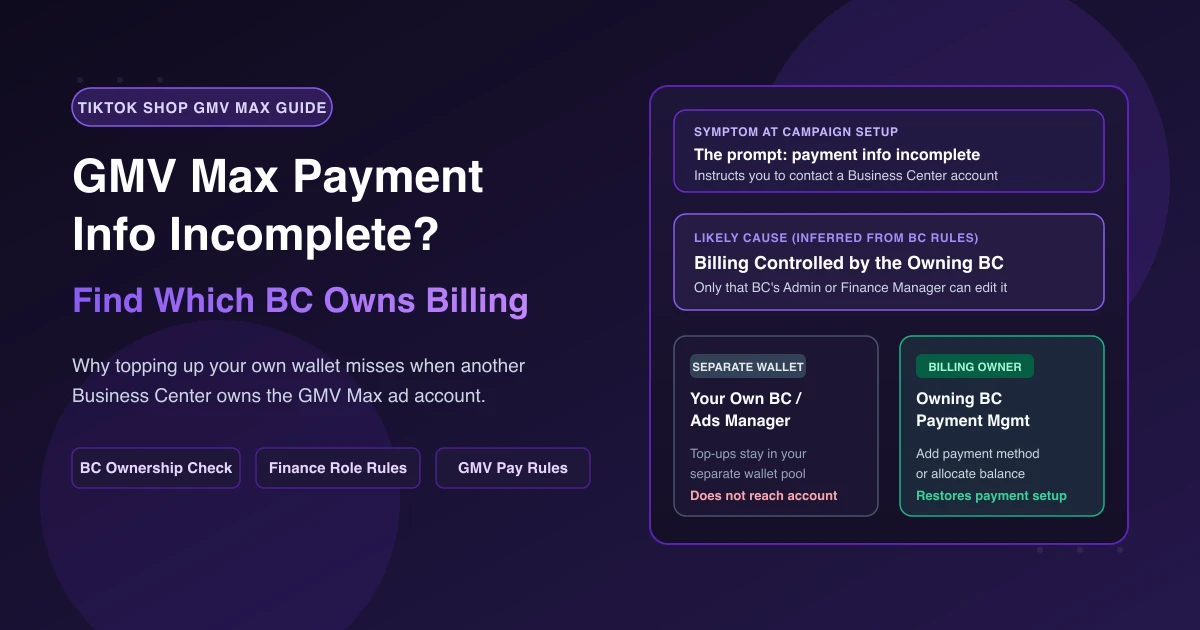
You add a card or top up funds in TikTok Ads Manager, try to launch your campaign, and hit a GMV Max payment information incomplete notice telling you to contact a Business Center account. Often you do not recognize the Business Center name, or you already funded your own wallet and cannot see why GMV Max blocks creation.
We could not find a TikTok help page for this prompt, so here is the diagnosis inferred from TikTok's Business Center payment rules: the ad account linked to your GMV Max setup is owned by another Business Center—typically the one named in the alert. When a Business Center owns an ad account, only an Admin or Finance role in that owning Business Center can add payment methods or allocate balance to it. Topping up your personal Ads Manager or another Business Center never reaches that account. Either have the owning Business Center configure billing and allocate funds, or switch GMV Max to an ad account owned by your own Business Center.
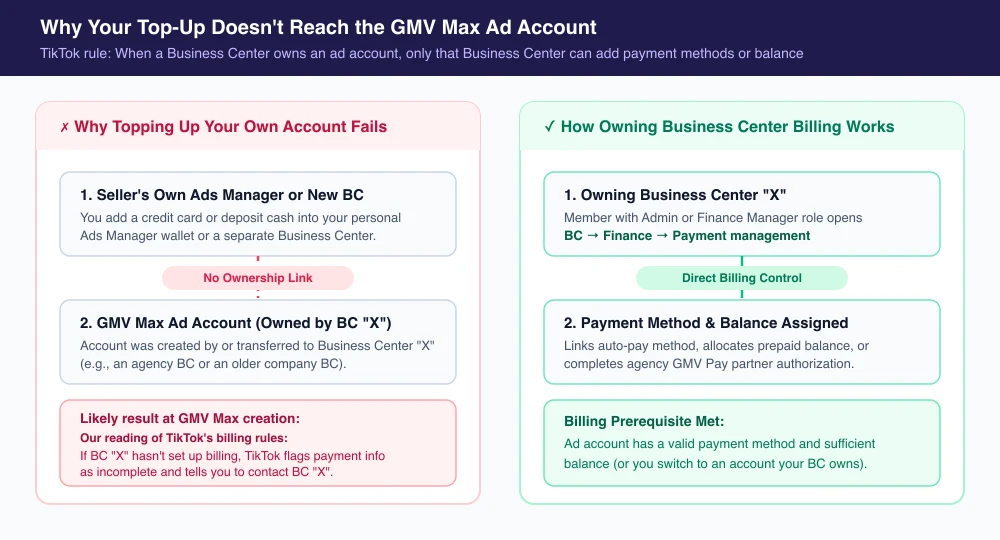
3-Step Check: Why GMV Max Says Payment Info Is Incomplete
- Identify the named Business Center: Check whether the Business Center in the prompt belongs to your agency, a former partner, or an older Business Center your team registered.
- Verify ad account ownership: In Business Center, open Accounts → Advertiser accounts. Per TikTok's Payment Management rules, a Business Center can only manage billing for an ad account it created or acquired via transfer. If your GMV Max account is missing or listed only as a partner asset, your Business Center cannot manage its billing.
- Check billing model and balance: Confirm whether the account uses manual payment (prepaid), automatic payment, or monthly invoicing. One-click GMV Max creation requires a valid payment method and sufficient balance, and TikTok requires automatic payment methods and manual top-ups for Business Center-owned accounts to be managed in the owning Business Center's Payment management page. If you cannot open Payment management for that account, return to step 2.
How to Fix GMV Max Payment Information Incomplete by Owner
Once you know which Business Center owns the ad account, follow the matching path.
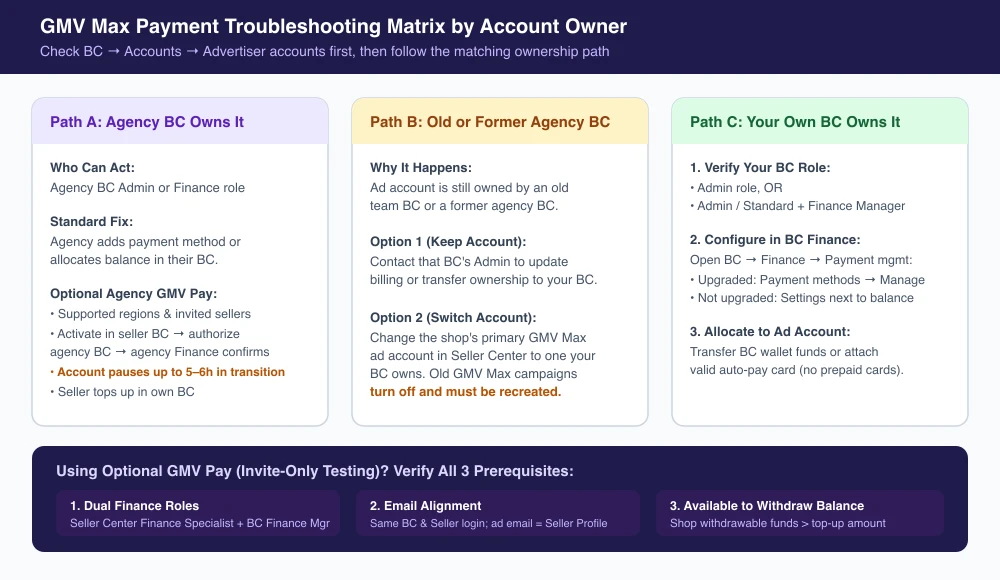
Path A: An Agency's Business Center Owns the Ad Account
Ask a Business Center Admin or Finance role member at the agency to open Business Center → Finance → Payment management and attach a payment method or allocate balance to your ad account (see our Seller Center vs. Ads Manager guide).
If you are an invited seller funding an agency-managed account with TikTok Shop revenue via GMV Pay, TikTok supports an agency workflow in select markets. It covers agency-managed cross-border sellers from mainland China or Hong Kong targeting the US, Southeast Asia, the UK, select EU markets, or Mexico, plus local agency-managed sellers in the six Southeast Asian markets:
- Establish a Partner link with the agency's Business Center and share shop verification.
- Activate GMV Pay in your own Business Center and authorize the agency's Business Center.
- Have a Finance manager in the agency's Business Center confirm it (the ad account pauses for up to 5–6 hours during transition).
- Add balance from your own Business Center; agencies only see "Sufficient cash balance" and cannot view your payment portfolio.
Path B: An Old or Former Agency Business Center Owns It
If the prompt names an older company Business Center or former agency:
- Keep the account: Ask that Business Center's Admin to update billing or transfer ad account ownership to your active Business Center.
- Switch the shop's GMV Max ad account: In Seller Center, change the primary ad account to one your current Business Center owns—existing GMV Max campaigns on the old account turn off and must be recreated.
Path C: Your Own Business Center Owns the Ad Account
If your own Business Center owns the account, the likely gaps are your login's finance permissions or a missing payment method or balance on that account:
- Verify your role: You need an Admin role, or an Admin / Standard role with a financial manager role in Business Center.
- Configure billing: Open Business Center → Finance → Payment management, then click Manage under Payment methods (if upgraded to Payment Portfolio) or Settings next to Available balance (if not upgraded) to link a payment method or add balance.
Using GMV Pay? Check Invite Status, Roles, and Email
GMV Max does not require GMV Pay. GMV Pay is an optional payment method using TikTok Shop revenue across 15 markets and is in limited testing for invited sellers only. TikTok's docs conflict on monthly invoicing—the overview lists manual, automatic, and monthly invoicing as eligible, while the setup guide says monthly invoicing accounts cannot use GMV Pay—so go by the options in your account.
| Requirement | Rule to Verify | Fix When Blocked |
|---|---|---|
| Dual Roles | Finance Specialist in Seller Center AND Finance Manager in Business Center. | Have admins assign both roles to your login. |
| Same Email | Business Center, Seller Center, and advertiser account emails must match. | Match your advertiser email to My Account → Seller Profile → Seller information in Seller Center. |
| Shop Funds | Seller Center Available to withdraw must exceed the top-up. | Lengthen auto-withdrawal duration; auto top-up (Seller Center → Marketing → Shop Ads → Payment details → Set auto balance recharge) requires manual payment and caps top-ups at available funds under $300. |
What If Your Card Is Declined Instead?
If you have Finance Manager access in the owning Business Center and your card fails while saving, check the card details first. Card errors usually point to an expired card, card status issue, invalid security code, or prepaid card (disallowed on automatic payment). TikTok also deducts a temporary verification charge of at least $10, refunded within 15 days. If the card is valid, try an incognito window, disable VPNs for 3DS, or add &reset_cache=1 to the URL. See our TikTok Ads payment failed guide.
Frequently Asked Questions
Where does GMV Max deduct ad spend from?
Sellers fully fund GMV Max ads; TikTok does not cover the spend. Charges come from the ad account's balance or payment method, including GMV Pay if enabled.
If an agency is the Bill-To payer, who is liable?
Even when a third-party Bill-To payer pays monthly invoices in Business Center, TikTok states that payment liability remains with the advertiser.
I funded my Business Center. Why won't GMV Max spend?
Money added at the Business Center level still has to be allocated to the specific ad account by a Business Center Admin or Finance Manager—see our TikTok Ads insufficient balance guide.
Catch Balance Gaps Before GMV Max Stops
When an agency-owned or shared ad account runs dry, nobody on your side may notice until delivery stops. AdRate checks the balance of each ad account you set a threshold for hourly, sends a Lark alert when it drops below your line, and flags accounts whose balance it cannot read—often a sign of missing finance permissions in the owning Business Center—alongside automated GMV Max rules for spend and ROI alerts.
Official TikTok new advertiser program - exclusive benefits for new advertisers
Open a new TikTok ad account and earn official ad credit as you spend
Spend $200 within 30 days of signing up and get $200 in ad credit, rising to $6,000 when you spend $10,000. Credits go straight into your TikTok ad campaigns.
Coupons are issued by TikTok once it confirms you qualify as a new advertiser. Actual issuance and tiers are shown on the Coupon Progress page inside your TikTok Ads account.