TikTok Ad Account Refund: Two Paths to Get Your Balance Back
Learn how to close a TikTok ad account and refund the remaining balance, with separate steps for Business Center-owned accounts and standalone accounts.
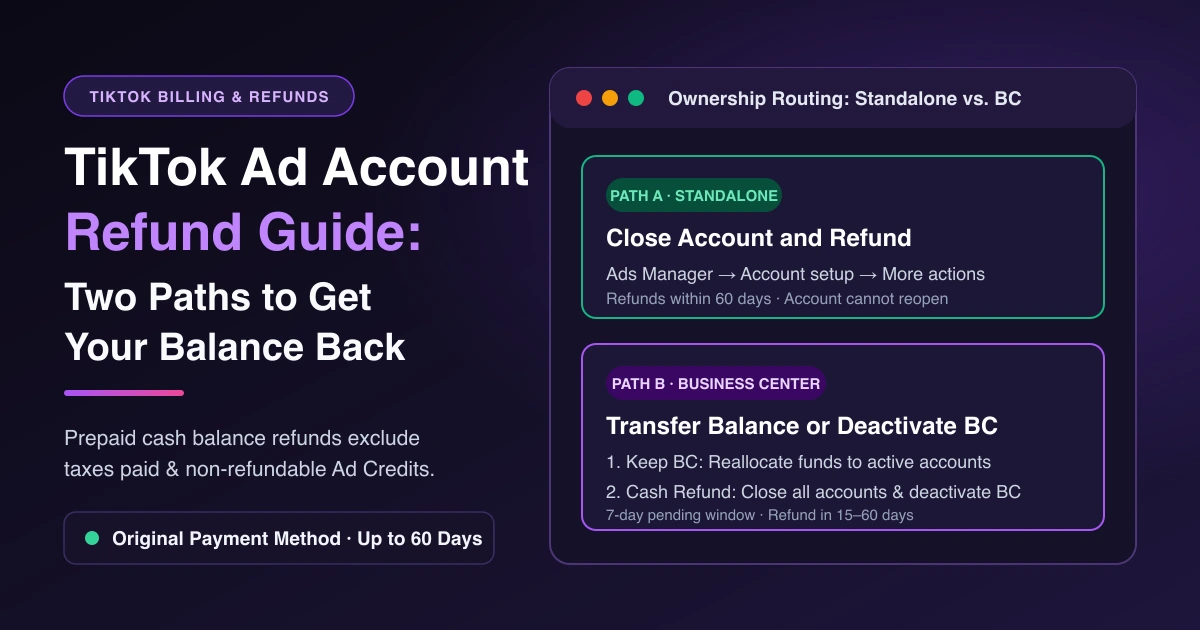
When you stop advertising or switch business entities, you can request a TikTok ad account refund for your unspent prepaid balance—excluding taxes paid—if your account is in good standing and uses manual or automatic payment. Requesting a refund permanently closes the ad account, which cannot be reopened. TikTok returns funds to your original payment method on file in your agreed billing currency within 60 days.
Your steps depend on whether a Business Center owns the ad account or it stands alone in TikTok Ads Manager. If your account was suspended rather than closed voluntarily, see TikTok ad account suspended appeal. For in-app Promote funds, see TikTok Promote rejected refund.
Before You Close: What Gets Refunded and What Doesn't
Here is how TikTok calculates refundable funds under the ad account refund FAQ, Refund Policies, and Ad Services Payment Terms:
| Balance or Account Type | Cash Refund? | Rule Before Closing |
|---|---|---|
| Prepaid cash balance (manual or automatic) | Yes | Returned to the original payment method in the agreed billing currency; you bear bank transaction fees. |
| Taxes already paid | No | Refunds cover only the remaining balance excluding taxes paid. |
| Ad Credits | No | Non-refundable, no cash value, and non-transferable. |
| Monthly invoicing | No self-serve | Not eligible for self-serve Business Center deactivation; contact your account manager or support. |
Complete three checks first:
- Use eligible Ad Credits. Under the Advertising Credit Terms and Conditions, Ad Credits are excluded from refunds. If active vouchers aren't spending, check TikTok ad credit not applied before closing.
- Finish campaigns and pay bills. Refunds process only after booked campaigns finish and all payable amounts are calculated and paid off. Fix declined charges first with TikTok ads payment failed fixes.
- Keep the original payment method active. Refunds return only to the original payment method—within 60 calendar days of closure for standalone accounts, or after a 7-day pending deactivation window plus 15–60 days (depending on your region) when deactivating a Business Center.
Step 1: Check Whether a Business Center Owns the Account
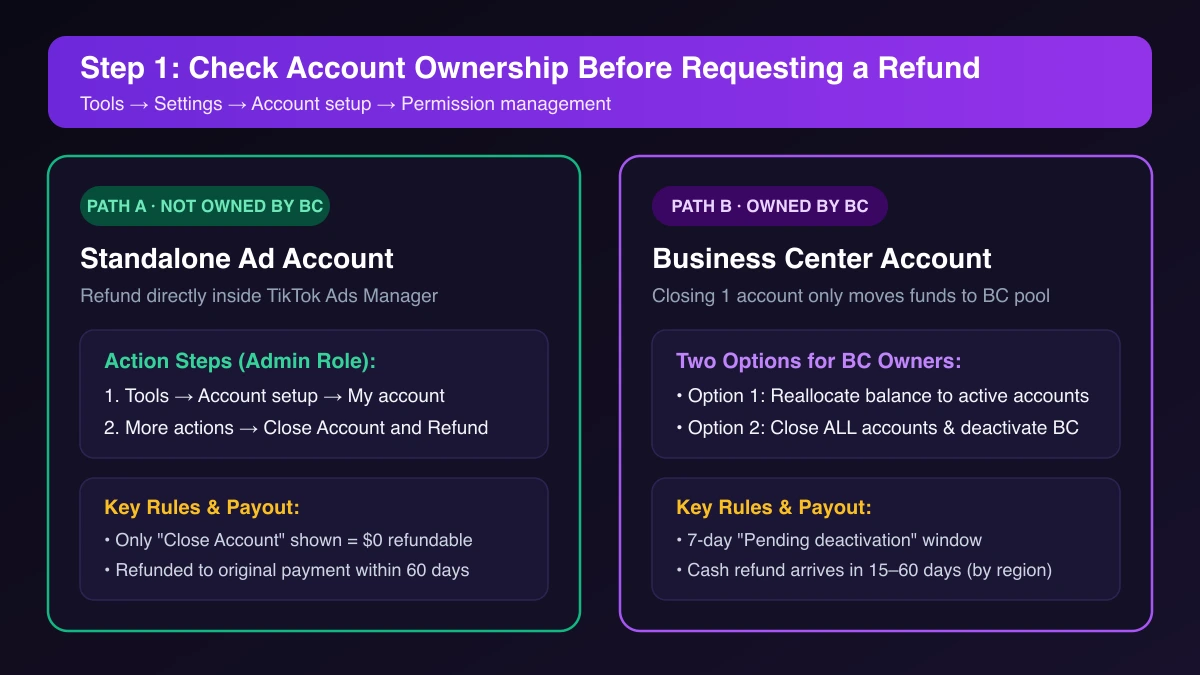
Log in to TikTok Ads Manager as the owner and open Tools → Settings → Account setup → Permission management.
If you see "ad account belongs to a Business Center" or a listed Business Center, use Path B. Otherwise, use Path A.
Path A: Standalone Ad Account — Close Account and Refund in Ads Manager
For standalone accounts not owned by a Business Center, follow TikTok's standalone refund steps:
- Log in to TikTok Ads Manager as an account Admin.
- Go to Tools → Account setup → My account → Basic information.
- Click More actions and select Close Account and Refund.
Watch for two interface states:
- Only "Close Account" appears (without "and Refund"): You have no balance eligible for refund.
- No refund option appears: Contact your account manager or customer support.
Once confirmed, TikTok closes the ad account permanently and issues the refund to your original payment method within 60 days.
Path B: Business Center-Owned Account — Transfer or Refund
TikTok's help pages split this rule across two guides. Although the Business Center account closure guide briefly mentions refunding unused balance, the same section states that closing one ad account transfers its remaining balance to the Business Center—and the Business Center refund guide explicitly states that getting a cash refund requires closing all ad accounts associated with the Business Center and deactivating the Business Center. The steps below follow that Business Center refund guide.
Option 1: Transfer the Balance to Another Ad Account
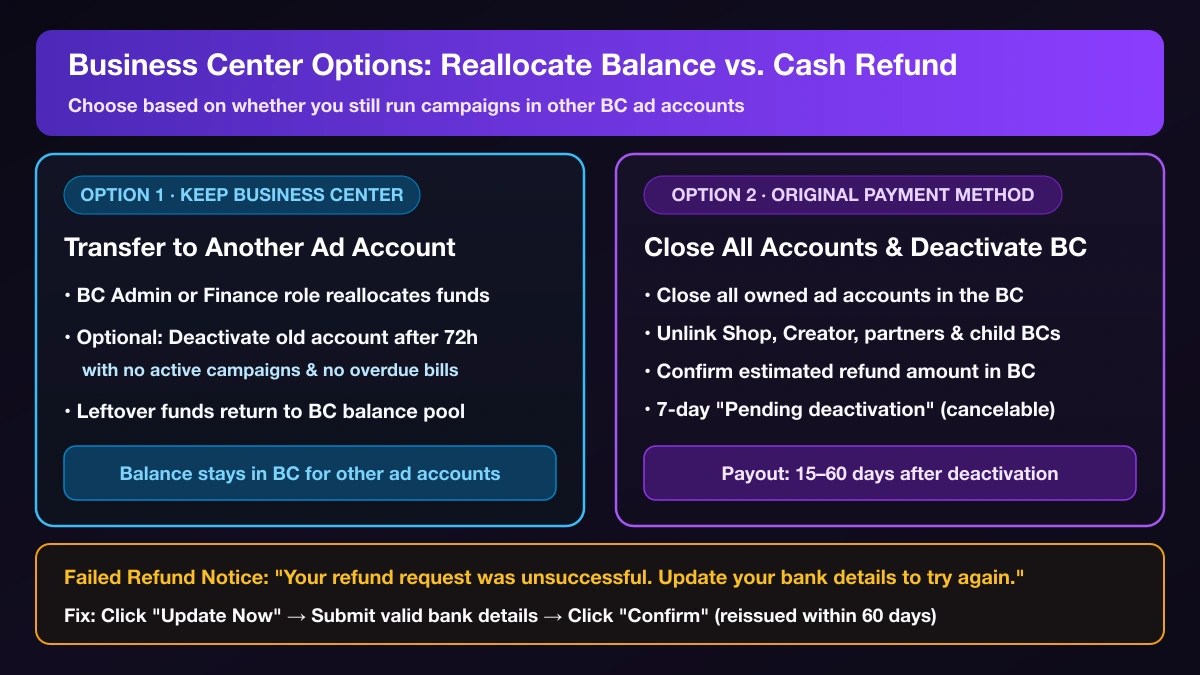
If you still run ads in other accounts under the Business Center, a Business Center Admin or Finance member can increase or decrease ad account balances in Business Center payment management—see TikTok ads insufficient balance.
To close the old ad account, ensure it is owned by your Business Center, is Approved, has no overdue bills, and has had no active campaigns for at least 72 hours. Go to Business Center → Accounts → All accounts → Advertiser accounts, select it, and click Deactivate → Confirm. Any remaining balance moves to the Business Center, and the closed account cannot be recovered.
Option 2: Close All Ad Accounts and Deactivate the Business Center for Cash
To withdraw cash back to your original payment method:
- Confirm eligibility: Managed accounts must contact their TikTok representative. For self-serve Business Centers on manual or automatic payment (and not suspended), a Business Center Admin follows the Business Center deactivation steps.
- Clear linked assets: Close all ad accounts in the Business Center; unlink non-owned ad accounts, TikTok Shop, Creator Marketplace, Business Account, and TikTok One; remove partners and parent/child Business Centers; and clear pending members.
- Verify the refund amount: Check the displayed available balance and estimated refund before confirming. If incorrect, contact support inside the Business Center.
- Wait out the 7-day window: The Business Center stays in "Pending deactivation" for seven days (cancelable via Stop account deactivation), then refunds arrive within 15–60 days, depending on your region and deactivation date.
Tracking Your TikTok Ad Account Refund and Fixing a Failed Request
Track status in TikTok Ads Manager under Tools → Settings → Payment → Summary → Refund Information, or click View Details in notifications (Refund Details on the Payment page). Share your Ad Account ID and Business Center ID if contacting support.
If bank details are wrong or restricted by your bank, TikTok shows: "Your refund request was unsuccessful. Update your bank details to try again." Follow the unsuccessful refund steps by clicking Update Now, entering valid bank details, and clicking Confirm to receive the refund within 60 days.
Frequently Asked Questions
Can I reopen a closed TikTok ad account?
No. Requesting a TikTok ad account refund closes the account permanently, and closed ad accounts cannot be reopened or recovered.
Do Ad Credits get refunded when I close my account?
No. Ad Credits are non-refundable, have no cash value, and cannot be transferred.
How do I delete a TikTok Business Center?
TikTok handles this through Business Center deactivation, covered in Option 2 above. For an eligible self-serve Business Center, an Admin must close all ad accounts, unlink non-owned accounts and assets, remove partners and parent/child Business Centers, and clear pending members. Once confirmed, it stays in pending deactivation for seven days.
How can we avoid locking up large prepaid balances across accounts?
If you manage multiple ad accounts and Business Centers, AdRate lets you monitor balances in one place and set low-balance alerts—so you can top up in smaller amounts instead of waiting up to 60 days for a refund.
Official TikTok new advertiser program - exclusive benefits for new advertisers
Open a new TikTok ad account and earn official ad credit as you spend
Spend $200 within 30 days of signing up and get $200 in ad credit, rising to $6,000 when you spend $10,000. Credits go straight into your TikTok ad campaigns.
Coupons are issued by TikTok once it confirms you qualify as a new advertiser. Actual issuance and tiers are shown on the Coupon Progress page inside your TikTok Ads account.